
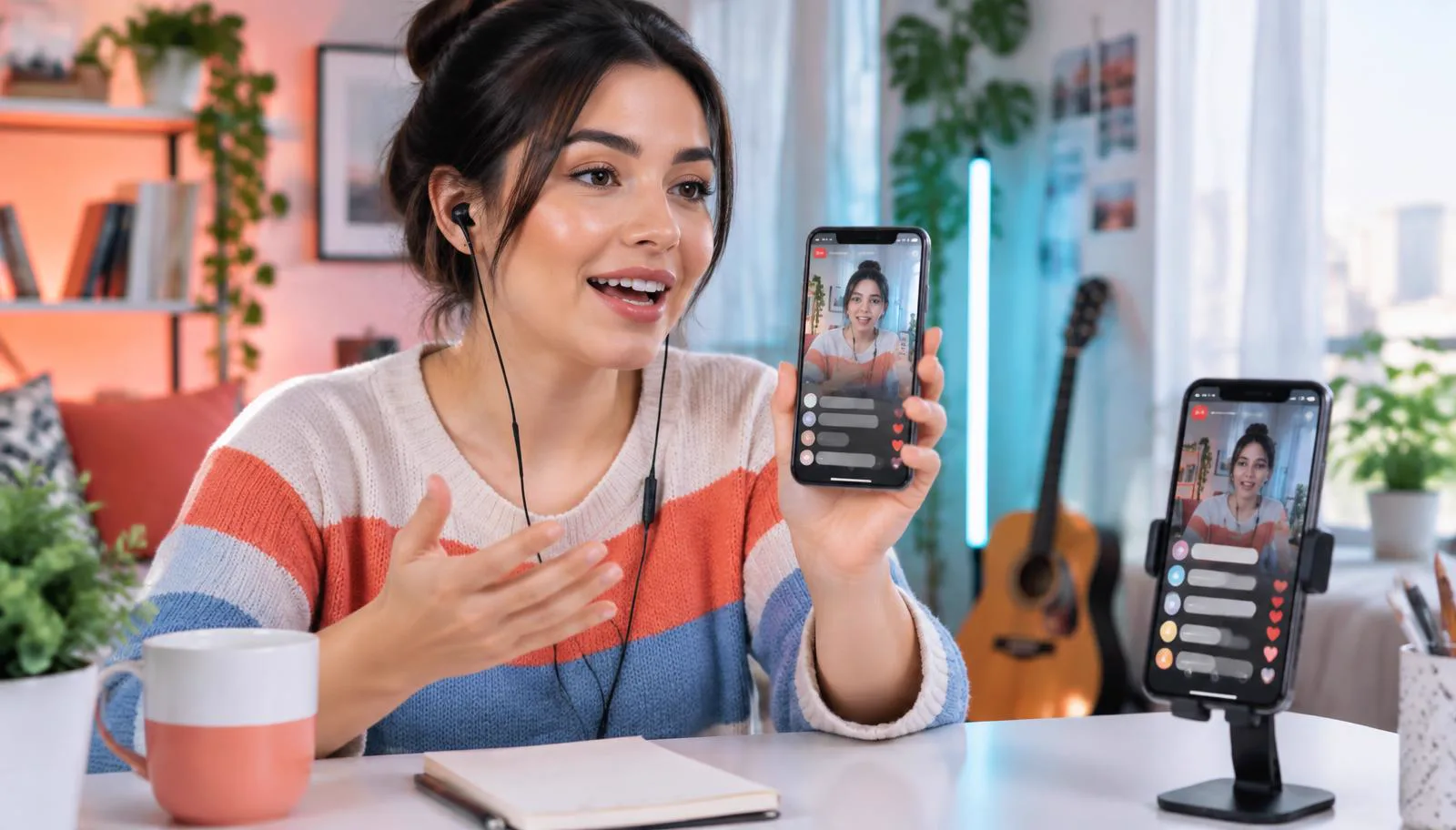
Yes, you can use a voice changer on TikTok Live from a phone, but only if the changed signal reaches TikTok as the active microphone while you speak. An effect that works in a saved clip is not enough. TikTok Live needs a continuous audio input, so the important question is not which preset sounds best. It is where the voice gets processed before TikTok captures it.
This guide stays entirely on mobile. It covers direct-from-phone livestreaming on compatible iPhones and Android devices, with no computer, desktop broadcast software or virtual microphone. You will set up a hardware audio path, verify the viewer-side result and diagnose the common cases where TikTok still receives your natural voice.
Can a voice changer work on TikTok Live?
A mobile voice changer works on TikTok Live when it sits inside the microphone path. Your speech must enter the processor first, leave as changed audio and then reach the phone through an input TikTok can use. If the effect exists only inside another app, TikTok normally continues listening to the phone's built-in microphone instead.
That difference separates three jobs people often call a TikTok voice changer. TikTok's editing tools can alter recorded content. A standalone app can record and export a changed clip. Real-time hardware can process the microphone before the LIVE session receives it. Only the third path changes an ongoing mobile broadcast without stopping to render a file. Our guide to whether mobile voice changer apps work explains the wider operating-system boundary.
| Method | Works during mobile LIVE? | What TikTok receives |
|---|---|---|
| Post-recording effect | No | The live microphone; the effect is applied later |
| Ordinary recorder app | Usually no | The live microphone, not the exported clip |
| Direct USB-C voice hardware | Yes, on compatible phones | An already processed microphone signal |
The table is a routing test, not a quality ranking. Recording apps remain useful for edited TikToks because they offer retakes and precise timing. For a live conversation with viewers, however, the route must stay open every second of the broadcast. That requirement changes the setup completely.
Why most mobile voice changer apps fail during LIVE
On both iPhone and Android, apps are separated for privacy and call stability. A voice app can usually capture audio while it is active, process that audio and play or save the result. It generally cannot publish its output as a system-wide microphone that TikTok sees from another app. Granting microphone permission changes access, not routing.
The failure can be deceptive. You may hear a perfect changed voice through the app's monitor, switch to TikTok and assume that sound followed you. In reality, TikTok may open the built-in microphone, while the changer loses microphone ownership or pauses in the background. The local preview and the outgoing LIVE feed are now two separate audio paths.
If a second viewer cannot hear the changed voice, the LIVE route is not working—even when your own monitor sounds correct.
Some phone makers or social apps may provide their own effects, and those are useful when available. They work because capture, processing and transmission happen inside one approved path. They do not turn every third-party voice app into a TikTok microphone. For a deeper diagnosis, see why a voice changer may only work in recordings.
What you need before going live on your phone
Prepare the audio route before opening a public LIVE. The exact TikTok menus and LIVE eligibility rules can vary by account, region and app version, but the physical checklist stays the same. Use a phone that already has access to TikTok LIVE, update TikTok, charge the phone and close any app that may still hold the microphone.
- A compatible iPhone or Android phone with a working USB-C audio input.
- Dubbing AI Voice Changing Earbuds, including the in-line microphone and direct USB-C connector.
- The Dubbing AI companion app with a voice selected and live conversion active.
- A second phone or trusted listener account for checking the actual viewer-side sound.
- A quiet room and moderate monitoring volume to prevent speaker audio from returning to the microphone.
The second device matters more than another settings screen. It reveals whether TikTok is using the connected microphone, whether the natural voice is leaking through and whether the effect remains understandable after livestream compression. Keep that viewer device several feet away or use headphones so its playback does not create feedback.
How to connect Dubbing AI Earbuds to TikTok Live
Dubbing AI Voice Changing Earbuds process speech before it enters the phone's live app. As of September 2026, the product provides about 300 ms real-time conversion and 500+ voices. The advantage is structural: TikTok receives a connected microphone signal instead of waiting for one mobile app to pass audio into another.
- 1Close TikTok and any calling, recording or camera app that may be using the microphone.
- 2Connect the earbuds directly to the phone's USB-C port. Remove an unreliable hub or adapter during the first test.
- 3Open the Dubbing AI companion app, complete activation if needed and choose one clearly recognizable voice.
- 4Turn on live conversion and speak into the in-line microphone. Use monitoring to confirm that the selected voice is active.
- 5Leave the hardware connected, open TikTok and prepare a LIVE as you normally would. Do not disconnect the earbuds after TikTok opens.
- 6Start with a controlled test session, speak a fixed phrase and ask the second-device listener to describe what they hear.
Use one voice during the whole first test. Switching presets while troubleshooting makes it harder to tell whether an interruption came from the connection, processing or TikTok. Once the viewer confirms a stable changed signal, you can test voice switching and more demanding delivery without changing the basic route.
Set up TikTok Live on iPhone and Android
The same direct connection principle applies to both platforms, but port compatibility is the first checkpoint. As of September 2026, the earbuds support the full iPhone 15, 16, 17 and 18 families—including Plus, Pro and Pro Max models—as well as iPhone Duo. These devices use USB-C, so connect the earbuds directly and verify the external microphone before opening TikTok.
On a USB-C iPhone
Connect the earbuds while TikTok is closed, then confirm the changed voice in the companion app. Open TikTok only after the hardware route is stable. If TikTok was already running when you connected, fully close and reopen it so the app can initialize with the current audio device. Our iPhone voice changer comparison covers why older connector types need a different evaluation.
On a Type-C Android phone
Use an Android phone that accepts USB-C audio input; a Type-C charging port alone does not guarantee audio support. Connect directly, approve any device or microphone prompt and check that the in-line mic drives the level in the companion app. If the phone offers a USB audio routing setting, keep USB audio enabled. Reopen TikTok after any reconnect.
Neither platform normally gives TikTok a desktop-style microphone dropdown. That makes the connection order important and puts more weight on the viewer-side test. If the phone falls back to its built-in microphone, the stream may continue normally while silently losing the changed signal.
Test what TikTok Live viewers actually hear
Monitoring answers one question: is the processor creating the chosen voice? A second listener answers the question that matters: is TikTok transmitting it? Run the check before a scheduled stream, after reconnecting the earbuds and after any TikTok or phone software update that could change audio-device behavior.
- 1Place the viewer phone away from the creator phone and mute its microphone if the test format allows it.
- 2Say a repeatable sentence in your normal delivery, then pause so the listener can report clearly.
- 3Ask whether the voice is changed, whether a natural voice is audible underneath and whether words remain understandable.
- 4Move the cable gently and switch between quiet and energetic speech to expose an unstable connector or overloaded level.
- 5End the test, reconnect once and repeat it. A setup is ready only when it survives the normal reconnect sequence.
Do not judge latency by listening to the viewer phone in the same room. Network transport and device playback add their own delay, which can make a healthy route sound confusing to the creator. Let the remote listener judge clarity while you use the earbuds' local monitoring for delivery.
Fix common mobile TikTok Live audio problems
Start with the symptom the viewer reports. Avoid changing five permissions at once, because that can hide the actual break and make the next stream harder to reproduce. The receiving side remains the source of truth.
| Viewer hears | Likely cause | What to do next |
|---|---|---|
| Your natural voice | TikTok opened the built-in mic | Close TikTok, reconnect the earbuds directly, then reopen TikTok |
| Natural and changed voices together | Room sound or a second mic is active | Lower speaker volume, isolate monitoring and cover the phone mic briefly to identify leakage |
| Echo or feedback | Viewer playback is returning to the creator mic | Move the viewer device away, mute it or use headphones |
| No voice | USB audio disconnected or another app owns the mic | Close audio apps, reconnect and confirm the in-line mic in the companion app |
| Voice cuts out after movement | Loose port, case interference or adapter failure | Remove the case or adapter and retest the direct USB-C connection |
| Changed but hard to understand | Voice choice or input level is too aggressive | Choose a clearer preset, reduce level and retest normal speech |
A clean direct connection resolves more mobile LIVE failures than repeatedly reinstalling apps. If conversion works in the companion app but TikTok remains unchanged after a full reconnect, test the earbuds in a basic recorder. A changed recording confirms the phone accepts the hardware input; an unchanged recording points back to the connection or active voice setup.
Use changed voices responsibly on LIVE
A changed voice works best as a disclosed performance tool: a recurring character, a playful audience challenge, game commentary or a privacy layer that does not pretend to be a real person. Tell viewers when the voice is part of the format. Do not use it to impersonate someone, request money, evade moderation or mislead viewers about identity or authority.
Clarity also matters. Pick a voice that survives phone speakers and livestream compression, then keep your speaking pace slightly slower than normal. Dramatic presets can be entertaining for a short segment, while a restrained voice is easier to follow through a longer Q&A. The creative choice should serve the stream rather than obstruct it.
Build a repeatable mobile LIVE routine
Treat the audio path like part of your pre-stream lighting check. Connect the earbuds before opening TikTok, confirm one recognizable voice in the companion app, run a viewer-side test and keep the cable clear of your hands. That short routine catches microphone fallback before an audience arrives.
For edited TikToks, a recording app may still be the simpler tool. For a direct mobile LIVE, choose a setup that gives TikTok a changed microphone signal continuously. Once that route is reliable, voice selection becomes the creative decision it should have been from the start.
Take a changed voice live from your phone
Dubbing AI Earbuds process your voice through a direct USB-C audio path for compatible iPhone and Android livestreams.
Buy Dubbing EarbudsFrequently asked questions
Dubbing AI Team
Hardware & Voice AI
We build real-time voice changing hardware for gaming, streaming and calls.