
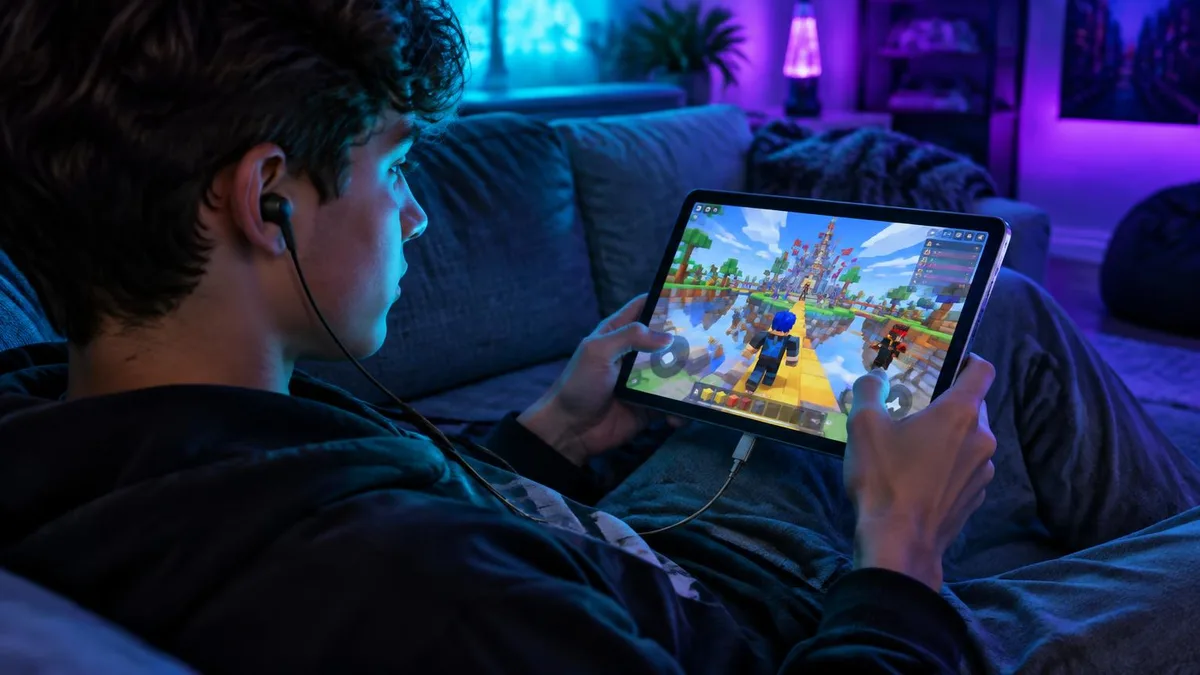
Many people use an iPad as their main game and chat screen. It is bigger than a phone, it sits on a stand, and Roblox looks better on it. So it makes sense to search for a voice changer for iPad and expect it to work everywhere at once.
In practice, three different jobs hide behind that search. Live chat needs your changed voice in real time. Roblox adds its own voice chat rules. Recordings only need the effect in the final file. Each one uses the microphone differently, and that decides which tool actually works.
Why iPad voice changer apps behave differently by task
iPadOS keeps every app in its own sandbox. A voice changer app can record you, apply an effect and save the clip. What it usually cannot do is replace the microphone that another app, like Discord or Roblox, is listening to at the same moment.
That is why many apps feel great for clips and silent in live chat. The effect is real, but it stays inside the voice changer app. Your friends in the game still hear the raw signal from the iPad's built-in microphone.
| Task | What needs the changed voice | Typical app-only result | With Dubbing AI Earbuds |
|---|---|---|---|
| Recordings and clips | The saved audio file | Usually works inside the app | Works; pick the earbuds as the mic in your recording app |
| Discord or FaceTime | The live mic another app reads | Often unchanged voice | Works once the earbuds are the active input |
| Roblox voice chat | Roblox's in-game mic input | Often unchanged voice | Works when Roblox voice chat uses the earbuds |
| Screen recording with mic | The system mic during capture | Depends on the app | Works when the mic toggle uses the earbuds |
How the Earbuds change your voice on an iPad
Dubbing AI Voice Changing Earbuds take a different route. They plug into the iPad's USB-C port, and the Dubbing AI app on the iPad runs the voice model. The changed voice then comes back in as a USB-C microphone, which other apps can select like any wired headset.
The Earbuds use wired USB-C audio and have no internal battery. Dubbing AI runs the voice model on the phone, sends the processed sound to the earbuds, and receives it back through USB-C microphone input. The app must remain running and the phone online throughout use. The app's device connection is separate from ordinary Bluetooth headset audio pairing.
- Connection: wired USB-C, no internal battery and no charging.
- Voices: 500+ voices in the Dubbing AI app (as of November 2026).
- Latency: around 300 ms, and older or busy iPads can add a little more.
- Internet: required for the whole session, on Wi-Fi or a cellular iPad.
Which iPads fit this setup
This setup is for iPads with a USB-C port. That covers recent iPad Pro, iPad Air, iPad mini and standard iPad models that moved from Lightning to USB-C. If your iPad still has a Lightning port, do not plan around it for this article's setup.
Using a voice changer for iPad live chat
Live chat is where timing matters most. Start the Dubbing AI app first, choose a voice, and leave it running in the background. Then open Discord, FaceTime or your calling app and check that it reads the earbuds rather than the built-in mic.
- 1Connect to Wi-Fi and plug the earbuds into the iPad's USB-C port.
- 2Open Dubbing AI, pick a voice and confirm the earbuds connection in the app.
- 3Open your chat app and start a short test call with a friend.
- 4Ask them which voice they hear before the real session begins.
- 5Keep Dubbing AI open in the background; closing it stops the effect.
If you mainly chat in Discord, our guide to using a Discord voice changer on mobile covers server settings, noise suppression and push-to-talk in more depth.
Setting up a voice changer for Roblox on iPad
Roblox voice chat has its own gate. Your account must already have voice chat enabled, and the experience you join must support it. A voice changer cannot unlock voice chat; it only changes the voice once voice chat is on.
Plug in the earbuds and start Dubbing AI before launching Roblox. When you join, unmute the mic icon above your avatar and speak a few words. If the bubble reacts but friends hear your normal voice, Roblox picked up the built-in mic, so restart Roblox with the earbuds already connected.
Order matters on iPad: earbuds in, Dubbing AI running, then open the game. Reversing the order is the most common reason the changed voice never reaches Roblox.
Before a long session, run a private check with a friend. Our walkthrough on testing a voice changer on Roblox mobile lists a two-minute routine that also works on iPad.
Change your voice in Roblox and live chat on iPad
Dubbing AI Voice Changing Earbuds plug into USB-C iPads and give chat apps and games a changed microphone, with 500+ voices and about 300 ms latency.
Shop Dubbing EarbudsRecording videos and clips with a changed voice
Recordings are the most forgiving task. If you only need a funny clip, a voice changer app's built-in recorder may be enough. The Earbuds help when you want to record gameplay, narration or a video app that reads the live microphone.
- Screen recording: long-press the Screen Recording button in Control Center and turn the microphone on.
- Video apps: check each app's audio input setting; some default to the built-in mic.
- Monitoring: record a 10-second test and play it back before filming the full piece.
- Sync: the roughly 300 ms delay can show on talking-head video, so leave room to nudge audio in editing.
Quick fixes when the iPad voice changer is not heard
| Symptom | Likely cause | What to try |
|---|---|---|
| Friends hear your normal voice | The app still reads the built-in mic | Reconnect the earbuds, then restart the chat app or game |
| Voice cuts out or sounds robotic | Weak or unstable internet | Move closer to the router or switch networks |
| Effect stops after a while | Dubbing AI was closed or suspended | Reopen the app and keep it in the background |
| Delay feels longer than usual | iPad under heavy load | Close other apps and lower game graphics |
Connection quality causes more drops than people expect. If you switch between home Wi-Fi and cellular, read our comparison of Wi-Fi versus mobile data for voice changing before a long stream.
Choosing the right iPad voice changer for your use
If you only make clips, start with the Dubbing AI app and its recorder. If you need your changed voice to reach friends live in Roblox, Discord or FaceTime, add the Earbuds on a USB-C iPad. Either way, test once with a friend before the moment that matters.
Frequently asked questions
Dubbing AI Team
Hardware & Voice AI
We build real-time voice changing hardware for gaming, streaming and calls.