
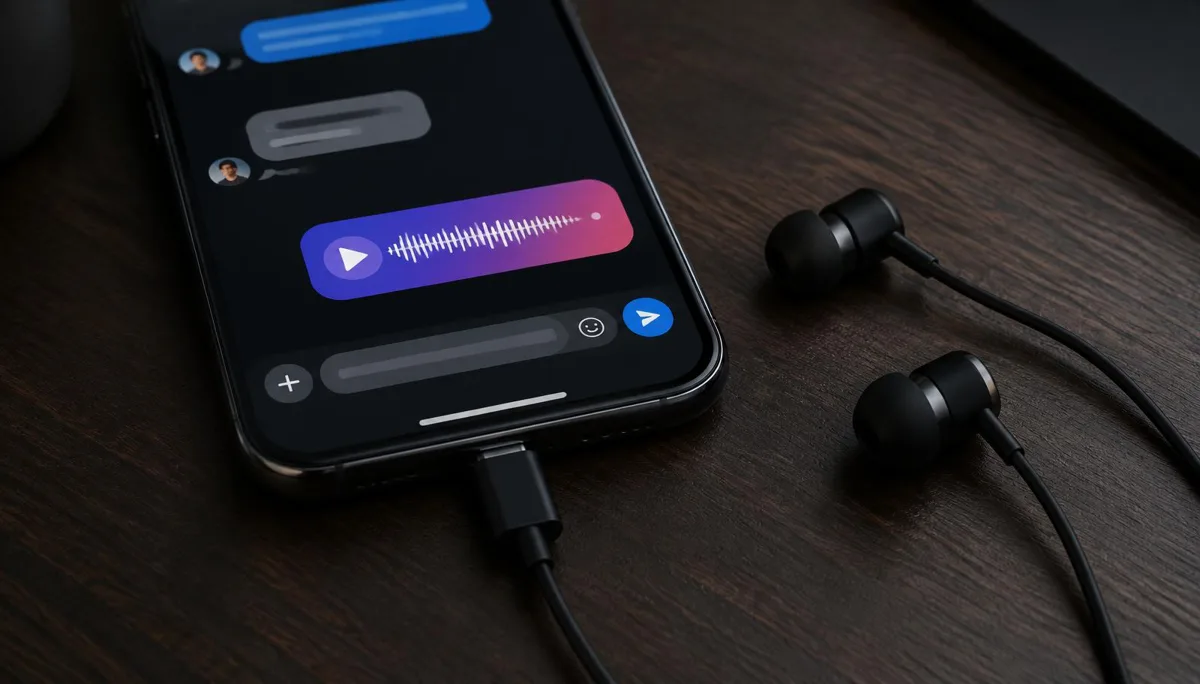
Instagram voice messages are a quick way to reply in DMs and group chats. A changed voice turns them into an inside joke, a character bit or a way to keep your real voice out of a large group. The problem is that the DM microphone has no voice filters.
So the change has to happen somewhere else. On iPhone and Android you have two realistic options: change the live microphone signal, or record an edited clip in another app and share it. This guide covers both, with the trade-offs.
Why Instagram DMs need an outside voice changer
Instagram's creative tools for Reels and Stories include audio editing, but a DM voice message is recorded and sent as is. When you hold the microphone button in a chat, Instagram takes whatever input your phone gives it. If that input is already changed, the message is changed too.
| Live microphone (Earbuds) | Edited clip (app) | |
|---|---|---|
| Arrives as | Native voice message bubble | Video or file attachment |
| Waveform playback in chat | Yes | Usually no |
| Hear yourself while recording | Yes, in the earbuds | Only on playback |
| Steps per message | Hold the mic and talk | Record, export, share |
| Also works for Instagram calls | Yes | No |
Method 1: Record live with Dubbing AI Earbuds
Dubbing AI Earbuds change your voice before Instagram receives the microphone signal, so the result looks and plays like any other voice message. The Earbuds use wired USB-C audio and have no internal battery. Dubbing AI runs the voice model on the phone, sends the processed sound to the earbuds, and receives it back through USB-C microphone input. The app must remain running and the phone online throughout use. The app's device connection is separate from ordinary Bluetooth headset audio pairing.
As of November 2026 they work with USB-C iPhones (iPhone 15, 16, 17 and newer, including Plus, Pro and Pro Max models) and with Type-C Android phones that support USB-C audio input. You get 500+ voices, with roughly 300 ms of delay depending on phone performance. Full specs are on the Dubbing AI Earbuds product page.
- 1Plug the earbuds into the phone's USB-C port and open the Dubbing AI App with internet access.
- 2Choose a voice and say a test line. You should hear the changed voice in the earbuds.
- 3Leave the app running, open Instagram and go to the DM thread.
- 4Press and hold the microphone icon to record, or slide up to lock for a longer message.
- 5If you locked the recording, listen back before sending when the preview is offered.
- 6Send, or cancel and record again until the take sounds right.
Wait half a second after the recording starts before you speak. The short processing delay can cut off your first syllable if you jump in instantly.
Reply in DMs with 500+ voices
Dubbing Earbuds plug into USB-C and change your voice live for Instagram voice messages and calls. Includes a 7-day Premium trial and 20% off.
Buy Dubbing EarbudsMethod 2: Edit a clip in another app and share it
Recording-style voice changer apps let you record, apply an effect and export. No hardware is needed, but Instagram will not treat the result as a voice message. Audio-only files often cannot be attached to DMs at all, so many people export the clip as a short video instead.
- 1Record your line in the voice changer app and apply the effect.
- 2Trim silence at the start and end, then play it back.
- 3Export as a video (a still image with your audio works) and save it to the camera roll.
- 4In the Instagram chat, tap the gallery icon, pick the video and send it.
This route suits one-off jokes. For quick back-and-forth replies it gets slow, because every message needs a full record-export-share cycle.
iPhone and Android settings that matter
- iPhone: allow microphone access under Settings > Instagram. Without it, the mic button does nothing.
- Android: check App info > Permissions > Microphone for Instagram and for the Dubbing AI App.
- Background limits: some Android battery savers pause apps in the background. Exclude the Dubbing AI App before recording.
- Bluetooth headsets: disconnect them first, or Instagram may record from the headset instead of the USB-C input.
Fixes when the voice message sounds wrong
| Symptom | Likely cause | Fix |
|---|---|---|
| Your normal voice was sent | Instagram used the built-in or Bluetooth mic | Disconnect Bluetooth audio, replug the earbuds and confirm the app shows them connected |
| Message is silent | Mic permission off or app closed | Re-enable microphone access and keep the voice app open |
| First word missing | Speaking before processing starts | Pause briefly after pressing record |
| Robotic or choppy voice | Weak network or busy phone | Close other apps and switch to stable Wi-Fi or mobile data |
| Clip will not attach | Audio-only file | Export the clip as a short video |
If the earbuds are not recognised as a microphone on Android, work through our USB-C microphone troubleshooting checklist.
Undoing a bad take
Instagram lets you unsend a message by long-pressing it and choosing Unsend. It disappears from the chat for everyone, though someone may already have heard it.
Keep voice jokes friendly
DMs can be screen-recorded and shared. Never use a changed voice to impersonate a real person, harass someone or get around Instagram's Community Guidelines. If it is a prank, let people in on it quickly.
If you already send voice notes on other apps, the setup is the same. Our guide to changed-voice WhatsApp voice messages walks through the WhatsApp version step by step.
Frequently asked questions
Dubbing AI Team
Hardware & Voice AI
We build real-time voice changing hardware for gaming, streaming and calls.