
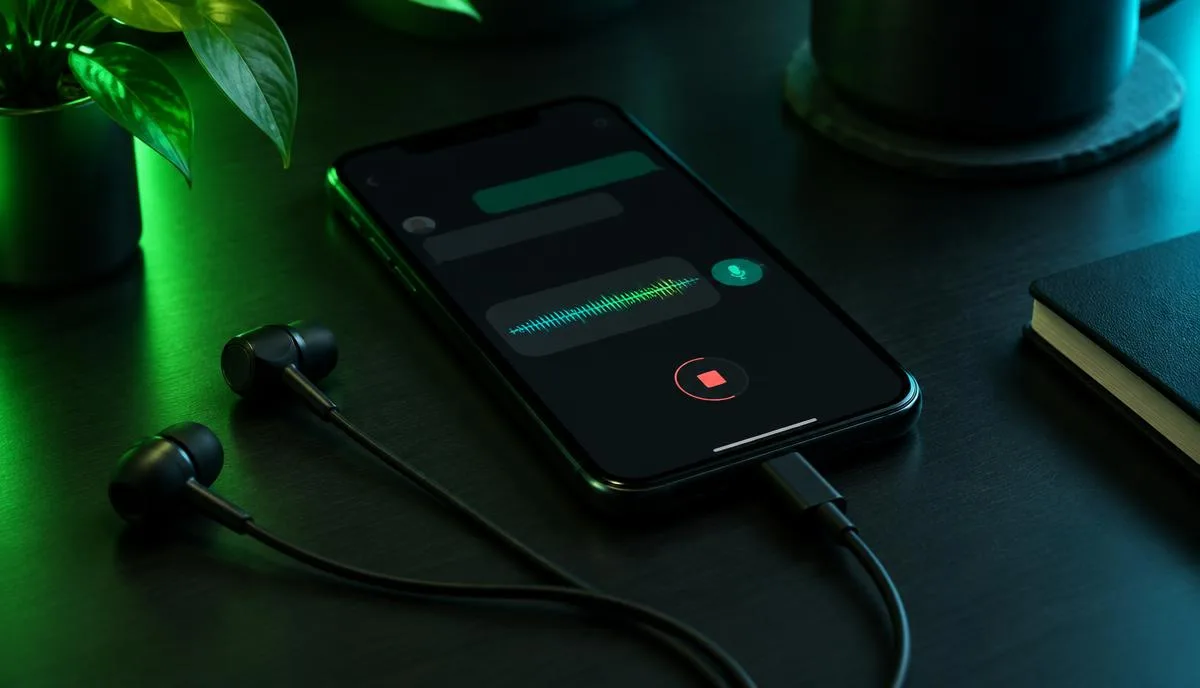
A WhatsApp voice message with a different voice is a fun way to surprise friends, voice a character or keep your real voice private in a group chat. The catch is that WhatsApp itself has no filters for voice notes. Whatever the app hears through the microphone is what it sends.
That leaves two practical routes on iPhone and Android. You can change the voice before WhatsApp hears it, or you can record somewhere else and send the finished file. This guide walks through both, step by step.
Two ways to put a changed voice into a WhatsApp message
The right method depends on whether you want a native voice note or are happy sending an audio file. The difference shows up in how the message looks and plays for the person receiving it.
| Live microphone (Earbuds) | Recorded file (app) | |
|---|---|---|
| Arrives as | Native voice note | Audio file attachment |
| Waveform and 1.5x/2x speed | Yes | Usually no |
| Hear yourself while recording | Yes, in the earbuds | Only on playback |
| Extra steps | Plug in and pick a voice | Record, export, share |
| Also works for calls | Yes | No |
Method 1: Record live with Dubbing AI Earbuds
Dubbing AI Earbuds change your voice before WhatsApp receives the microphone signal, so the result is an ordinary voice note. The Earbuds use wired USB-C audio and have no internal battery. Dubbing AI runs the voice model on the phone, sends the processed sound to the earbuds, and receives it back through USB-C microphone input. The app must remain running and the phone online throughout use. The app's device connection is separate from ordinary Bluetooth headset audio pairing.
As of October 2026 they work with iPhone 15 and newer USB-C iPhones and with Type-C Android phones that support USB-C audio input. The voice library has 500+ voices, with about 300 ms delay depending on phone performance. Details are on the Dubbing AI Earbuds product page.
- 1Plug the earbuds into the phone's USB-C port and open the Dubbing AI App while online.
- 2Pick a voice and speak a short test line. You should hear the changed voice in the earbuds.
- 3Leave the app running, then open WhatsApp and go to the chat.
- 4Press and hold the microphone button, or slide it up to lock recording for longer messages.
- 5When locked, tap stop, then play the draft to confirm the changed voice was captured.
- 6Tap send, or delete the draft and record again.
Speak a second after you start recording. The short processing delay can clip your first word if you start talking instantly.
Send voice notes in 500+ voices
Dubbing Earbuds plug into USB-C and change your voice live for WhatsApp messages and calls. Includes a 7-day Premium trial and 20% off.
Buy Dubbing EarbudsMethod 2: Record in an app, then share the audio file
Many recording-style voice changer apps let you record a clip, apply an effect and export it. This needs no extra hardware, but the message will look like a file, not a voice note.
- 1Record your clip inside the voice changer app and apply the effect.
- 2Play it back and trim silence at the start and end.
- 3Tap the app's share or export button and choose WhatsApp.
- 4Pick the chat, check the preview and send.
If WhatsApp does not appear in the share list, save the file first, then attach it from the chat with the plus or paperclip button and choose Document or Audio.
iPhone and Android differences to know
- iPhone: WhatsApp needs microphone access in Settings > WhatsApp. Shared files come through the iOS share sheet.
- Android: microphone permission sits under App info > Permissions. Some phones also let you pick the USB-C input in sound settings.
- File formats: M4A and MP3 attach reliably on both. Very long exports may be sent as documents instead of audio.
- Battery savers: aggressive Android battery modes can pause the voice app in the background, so exclude it before recording.
When the voice note sounds wrong
| Symptom | Likely cause | Fix |
|---|---|---|
| Your normal voice was sent | WhatsApp used the built-in mic | Replug the earbuds and confirm the app shows them connected before recording |
| Voice note is silent | Mic permission off or app closed | Re-enable microphone access and keep the voice app running |
| First word missing | Speaking before processing starts | Pause a beat after pressing record |
| Choppy or robotic audio | Weak network or busy phone | Close other apps and use stable Wi-Fi or mobile data |
| File will not attach | Unsupported format | Export as M4A or MP3 |
For deeper audio-path checks on Android, see our USB-C microphone troubleshooting checklist.
Keep it friendly and consensual
Voice notes are easy to forward, so a joke can travel further than you expect. Do not use a changed voice to impersonate a real person, pressure someone or hide your identity in ways that break WhatsApp's terms. If the voice is part of a prank, reveal it soon after.
A quick checklist before you hit send
- Voice tested and audible in the earbuds or the exported clip.
- WhatsApp has microphone permission.
- Recording locked and previewed before sending.
- Phone online and the voice app still running.
Once messages work, the same setup carries over to live conversations. Our guide to changing your voice on WhatsApp calls covers that next step.
Frequently asked questions
Dubbing AI Team
Hardware & Voice AI
We build real-time voice changing hardware for gaming, streaming and calls.