
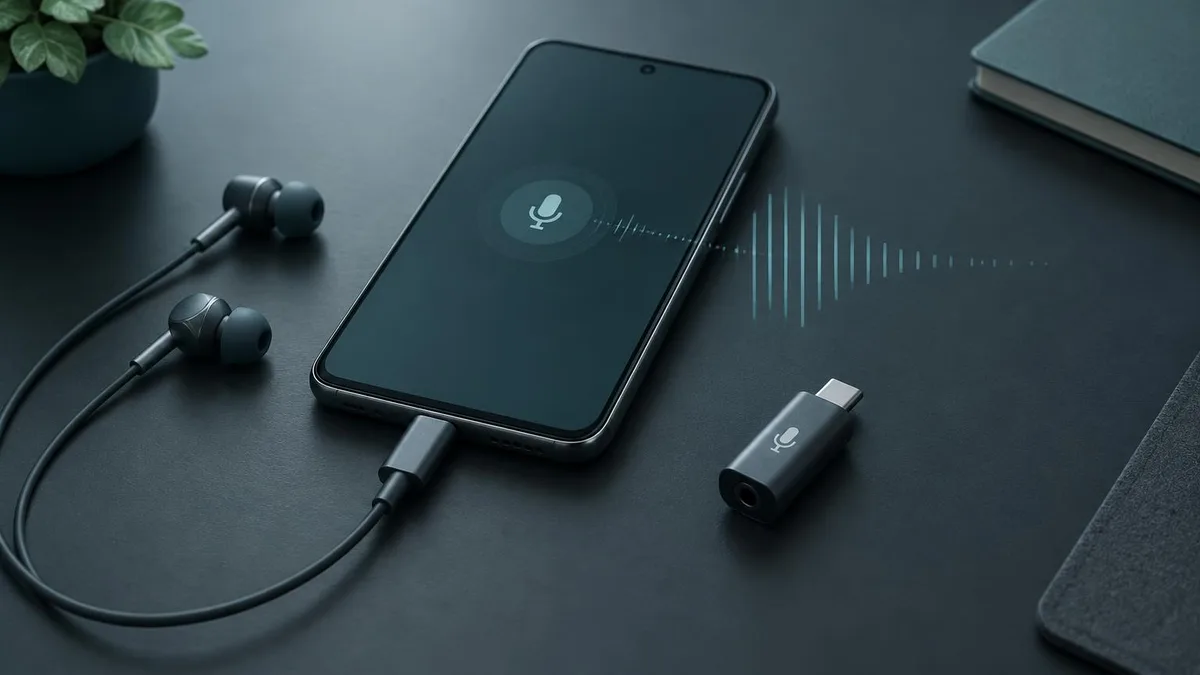
You plug a USB-C microphone or wired USB-C earbuds into your Android phone, open your app, and nothing happens. No input meter, no sound, no error message. This is one of the most common Android audio problems, and it almost always comes down to a short list of causes you can check in minutes.
This checklist moves from the most fundamental cause (the phone itself) to the most specific one (the app you are using). Work through it in order and you will know exactly where the chain breaks.
Confirm the Phone Actually Supports USB-C Audio Input
A USB-C port is just a connector shape. Most modern Android phones route digital audio over it, but some budget models only support charging and data, and a few support audio output to headphones but not microphone input. If the phone cannot accept USB audio input, no setting will fix that.
- Check the manufacturer's spec sheet for "USB audio" or "USB host mode / OTG" support.
- Search the exact model plus "USB-C microphone" to see whether other users have it working.
- Cross-test with a USB-C device that is known to work on another phone — if it is also dead here, suspect the phone.
Phones that support USB-C audio output almost always support input too, but the cross-test is the fastest way to be sure before you spend time on software settings.
Check the Basics Before Digging Deeper
Physical connection problems cause a surprising share of "dead microphone" reports. Run through these before touching any setting:
- 1Unplug the microphone or earbuds, restart the phone, then plug in again firmly.
- 2Remove adapters, hubs and splitters — connect the device directly to the phone.
- 3Take off a thick phone case if it stops the plug from seating fully.
- 4Inspect the port for lint or debris and clean it gently with a wooden or plastic pick.
- 5Try the cable or device on another phone or a computer to confirm it is alive.
A plug that feels inserted but sits half a millimetre short because of a case is enough to kill the connection entirely.
Make Sure the App Has Microphone Permission
Android will happily connect a USB microphone and still feed silence to any app that lacks permission. If you tapped "Deny" once — even by accident — the app gets nothing, with no visible warning.
Open Settings → Apps → your app → Permissions → Microphone and set it to "Allow while using the app". Then check the global microphone toggle: on Android 12 and later, pulling down Quick Settings reveals a "Mic access" switch that disables the microphone for every app at once. If that is off, no app will hear anything regardless of its own permission.
Set the USB Device as the Active Input
Most Android phones switch to a USB microphone automatically the moment it connects. But some apps — especially recorders, streaming apps and voice tools — keep their own input selector and may stay locked on the built-in mic. Look inside the app's audio settings for an input or microphone source option.
Order matters too. Plug the USB device in first, then open the app. Apps that scan for inputs at launch may never notice a device that arrives later. If the app was already running, force-close it and reopen after connecting.
Rule Out Power and OTG Limitations
USB microphones draw power from the phone. Simple passive adapters and wired USB-C earbuds need very little, but condenser mics and interfaces with preamps can exceed what a phone supplies — the device may appear and vanish, or never enumerate at all.
- Some phones expose an OTG toggle in Settings (often under "Additional settings" or "Connected devices") that must be switched on, and a few auto-disable it after minutes of inactivity.
- A powered USB hub between phone and mic solves most power-shortage cases.
- If the phone shows a notification like "USB device connected" but the mic still fails, power or app-level selection is the likely culprit rather than detection.
Test With a Second App and a Second Device
Now isolate the fault with a simple two-way test. Open a plain voice recorder app and record a few seconds through the USB mic. If the recorder hears you, the hardware chain — phone, port, cable, microphone — is fine, and the problem lives in the app you actually want to use.
| Recorder hears the mic? | Mic works on another phone? | Conclusion |
|---|---|---|
| Yes | — | Hardware is fine; fix the target app's permissions or input selection |
| No | Yes | The phone or its settings are at fault — revisit Steps 1–5 |
| No | No | The microphone, cable or adapter is defective |
This single table saves hours. Most people bounce between random settings; a controlled comparison tells you which layer to fix.
When the Mic Works but Your Voice Changer Hears Nothing
A special case: the recorder test passes, but your real-time voice changing setup stays silent. With wired USB-C gear like the Dubbing AI voice changing earbuds, the signal chain is longer than a plain mic. The phone runs the voice model in the app, sends processed sound to the earbuds, and receives your voice back through the USB-C microphone input — so the app must be running and the phone must stay online the whole time.
Also note that the app's device connection is separate from ordinary Bluetooth headset pairing: seeing the earbuds in your Bluetooth list is not the same as the app being connected to them. If the mic works in a recorder but the changer is silent, check that the app shows the device as connected and that your network is up. Our guide on why a voice changer only works in recordings walks through that live-chain diagnosis in detail, and the audio delay checklist covers the related case where the voice arrives but lags.
A Quick Checklist You Can Run in Five Minutes
- 1Confirm the phone supports USB-C audio input (spec sheet or cross-test).
- 2Reconnect directly, no adapters or hubs, case off, port clean, phone restarted.
- 3Grant the app microphone permission and check the global Mic access toggle.
- 4Plug in first, then launch the app; set the USB device as input if the app asks.
- 5Switch on OTG if the phone has the toggle; try a powered hub for hungry mics.
- 6Record in a second app; test the mic on a second phone to isolate the fault.
- 7For voice changers: confirm the app is running, connected to the device, and online.
In practice, steps 1, 3 and 6 solve the large majority of cases. If you reach the end with a mic that works elsewhere but never on your phone, the honest answer is that the handset's USB audio support is the limitation — and a phone that handles USB audio input properly becomes the real fix. You can browse more setup and diagnosis guides on the Dubbing AI Hub blog.
Frequently asked questions
Dubbing AI Team
Hardware & Voice AI