
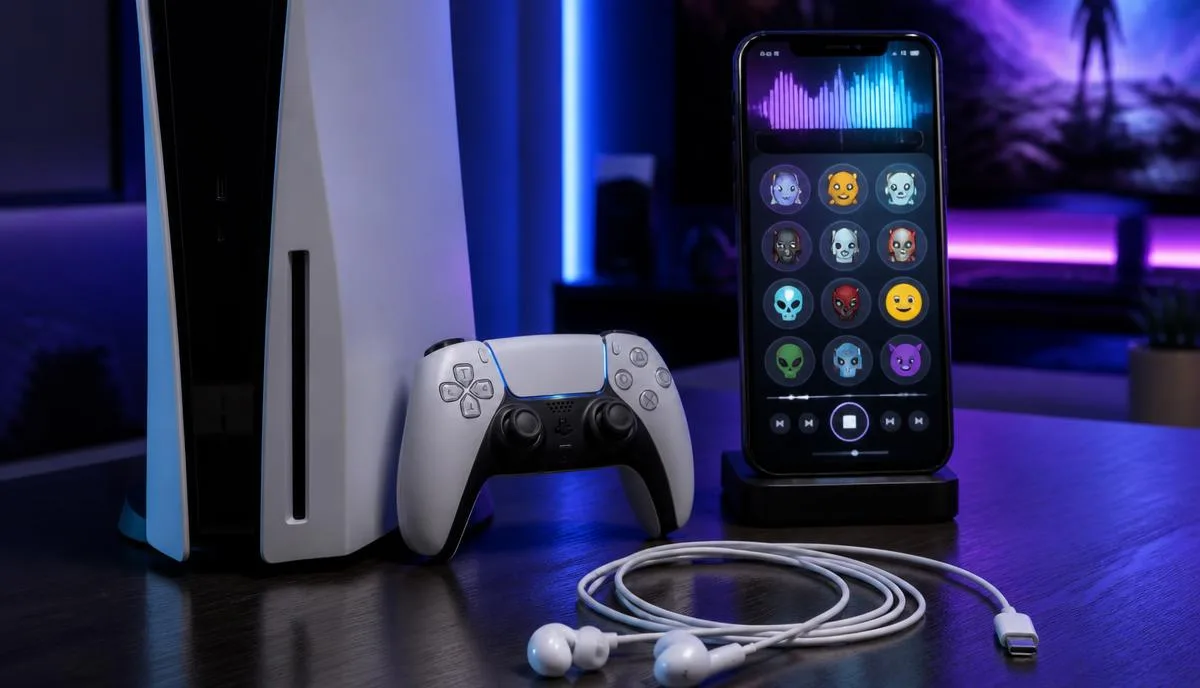
Search the PlayStation Store for a voice changer and you will find nothing, because there is nothing to find. The PS5 does not run third-party audio software, full stop. Yet players change their voices on PS5 every day — they just do it before the sound reaches the console.
This guide explains the phone-first setup for the Dubbing AI Earbuds. Console & VR Mode is available, but the phone remains the voice-processing device. Check the exact PS5 connection and chat input; a successful local monitor test is not evidence for every chat channel.
The current Earbuds connection and processing requirements
The Earbuds use wired USB-C audio and have no internal battery. Dubbing AI runs the voice model on the phone, sends the processed sound to the earbuds, and receives it back through USB-C microphone input. The app must remain running and the phone online throughout use. The app's device connection is separate from ordinary Bluetooth headset audio pairing.
Why the PS5 can't run a voice changer app
PlayStation's operating system is locked down. You cannot install apps outside Sony's store, and no store app is allowed to sit between your microphone and the party chat audio pipeline. That is the same wall every console puts up — we break down the category in our console vs mobile voice changer comparison — and it is why every software-based answer to "PS5 voice changer" quietly routes you back to a PC.
The workaround is to move the voice changing off the console entirely. Dubbing Earbuds process your voice in the Dubbing AI app on the phone, in real time. The PS5 simply sees a USB audio device — like any wired headset — and receives audio that is already changed. Your phone stays nearby as the processing device and must keep Dubbing AI running and online: it is where you pick and switch voices while you play.
What you need before your first match
- Dubbing AI Voice Changing Earbuds — the USB-C wired pair; the voice changing happens in the Dubbing AI app on the phone.
- A phone with the Dubbing AI app — Android v1.1.1 or later, or iOS v1.1.0 or later, so the earbuds page offers Console & VR Mode.
- Your PS5 and a seat near it — plug into a USB-C port on the console itself; the DualSense controller's USB-C port only charges and carries no audio, so you play within cable reach of the PS5. Stuck? See our PS5 earbuds troubleshooting checklist.
- A connection check — allow time to complete the phone connection and verify the outgoing voice with another person.
Step-by-step: from unboxing to your first changed-voice match
- 1Plug the USB-C earbuds into your phone and open Dubbing AI with internet access.
- 2Select Console Mode (Console & VR Mode) on the earbuds page in the app.
- 3Complete the connection in the app before disconnecting the earbuds from the phone.
- 4Unplug the earbuds from the phone and connect them to the console using the supported connection for that platform.
- 5Keep Dubbing AI running and the phone online throughout voice changing. Check the console's active microphone input and ask a listener to confirm the outgoing voice.
The phone runs the voice model even after the earbuds move to the console. Console Mode needs Dubbing AI to remain running and the phone to remain online.
If a connection sample plays but the recipient hears an unchanged voice, check the selected input, app connection and ongoing internet access. Use the current official firmware instructions for your unit; this tutorial does not establish adapter compatibility or a firmware-update duration.
Picking a voice that survives a shooter lobby
As of September 2026 the app carries 500+ voices with roughly 300 ms of latency — fast enough that callouts still land in rhythm with the fight. A few practical rules from daily use:
- Favor mid-pitch voices for callouts. Extremely deep or helium-high presets are funny for exactly one round; moderate shifts stay intelligible when you are rattling off positions.
- Test at lobby volume, not whisper volume. Voice changers track confident, steady speech best. Mumbling is what makes artifacts, not the effect itself.
- Save two or three presets, not twenty. In Console & VR Mode you switch from the phone between rounds, so a short list you can hit blind beats a library you scroll through.
- Keep sidetone on while you adjust. Hearing your own changed voice for the first minute recalibrates how loud you naturally talk.
Party chat vs in-game chat: what to expect
Check each intended PS5 channel separately. The console must use the processed microphone input, and the phone app must remain running and online. Do not infer party chat, game chat, messages and broadcasts all work merely because a connection sample plays.
| Channel | Changed voice works? | Notes |
|---|---|---|
| PS5 party chat | Verify the active input | The console receives already-changed audio, so party members hear the effect like any headset mic. |
| In-game voice chat (supported titles) | Check each game | Games that use the system mic input carry the changed voice; proximity-chat titles behave the same. |
| Voice messages to friends | Record and verify | Recorded messages use the same mic path, so they capture the changed voice too. |
| Streaming from the PS5 | Verify broadcast audio | Your mic feed in the broadcast carries the changed voice; the game audio is unaffected. |
Console & VR Mode is available beyond the mobile route, but each platform has its own ports and audio routing. This guide does not verify specific Xbox, Switch 2 or VR adapters or headsets. For phone sessions, see using a voice changer without a PC.
The two-minute version
Start on the phone: connect USB-C earbuds, open Dubbing AI, select Console Mode and finish the connection. Then move the earbuds to the PS5. Keep the phone app running and online, select the supported microphone route and verify the result with another listener before joining a match.
Change your voice on PS5 tonight
Dubbing AI Voice Changing Earbuds: 500+ voices, about 300 ms of latency, Console & VR Mode built in. One pair for your PS5, your phone and everything in between.
Get the Dubbing EarbudsFrequently asked questions
Dubbing AI Team
Hardware & Voice AI
We build real-time voice changing hardware for gaming, streaming and calls.