
Most PS5 voice changer problems are not mysterious. They come from one of four places: the wrong port, an unfinished Console Mode connection, a phone that stopped processing, or a chat channel using a different input. Work through them in that order and most issues resolve in a few minutes.
This is a troubleshooting guide, not a setup walkthrough. If you have never connected the earbuds to a console, start with our step-by-step PS5 voice changing guide and come back here if something goes wrong.
Quick symptom check before you unplug anything
| Symptom | Most likely cause | First fix |
|---|---|---|
| No mic at all, earbuds plugged into the controller | The DualSense USB-C port only charges | Move the plug to a USB-C port on the PS5 console |
| PS5 does not list the earbuds as an input | Loose plug or wrong port | Reseat the plug in the console's USB-C port, then recheck audio settings |
| Friends hear your normal voice | Console Mode not completed on the phone | Reconnect to the phone, finish Console Mode, then move back to the PS5 |
| Voice cuts out or turns robotic | Phone app closed, offline or overloaded | Keep Dubbing AI in the foreground with a stable connection |
| Party chat works, game chat silent | The game uses a different mic setting | Check the in-game voice settings for that title |
The PS5 doesn't see the earbuds as a microphone
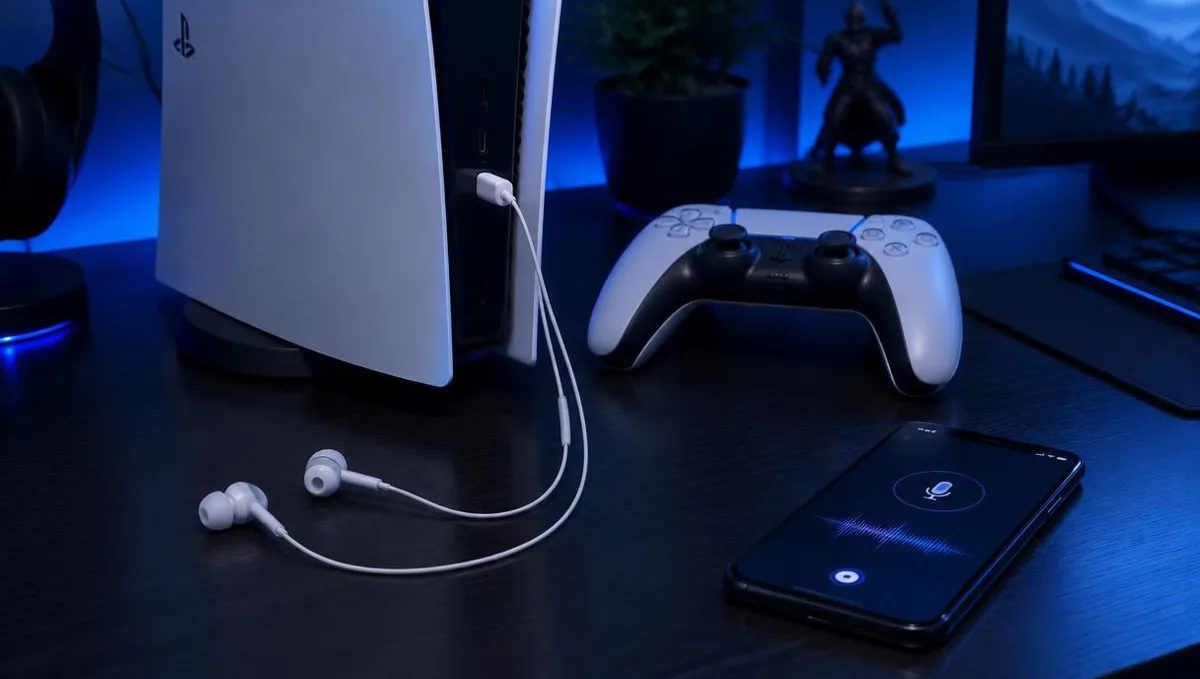
On PS5, plug the earbuds into a USB-C port on the console itself. The DualSense controller's USB-C port only charges and carries no audio data; the controller supports headsets only through its 3.5 mm jack. Because the earbuds are wired to the console, you need to sit within cable reach of the PS5 while voice changing.
This catches a lot of players, because plugging into the controller is the natural habit for headsets. The DualSense does carry headset audio, but only through its 3.5 mm jack. Its USB-C port is for charging, so a USB-C audio device plugged there is simply never seen.
- Use the console's USB-C port. Plug directly into the PS5 body, not the controller and not a charging dock.
- Plan your seating. The cable now runs to the console, so sit within reach of it rather than across the room.
- Reseat the plug. A half-inserted USB-C connector can power on without passing audio.
- Check the input. In the PS5 sound settings, confirm the microphone input points to the USB device, not the controller.
Friends hear your normal voice, not the changed one
If the PS5 hears a mic but your squad hears your real voice, the earbuds are passing audio without the phone processing it. The Earbuds don't change your voice on their own: the model runs in the Dubbing AI app on your phone. Console Mode has to be set up on the phone first, in this order:
- 1Plug the USB-C earbuds into your phone and open Dubbing AI with internet access.
- 2Select Console Mode (Console & VR Mode) on the earbuds page in the app.
- 3Complete the connection in the app before disconnecting the earbuds from the phone.
- 4Unplug the earbuds from the phone and connect them to the console using the supported connection for that platform.
- 5Keep Dubbing AI running and the phone online throughout voice changing. Check the console's active microphone input and ask a listener to confirm the outgoing voice.
Order matters. Moving the earbuds to the PS5 before the app finishes the Console Mode connection is the most common reason the voice comes through unchanged.
The voice cuts out or turns robotic mid-match
Since the phone does the processing for the whole session, anything that interrupts the phone interrupts your voice. The PS5 side is rarely the cause once the first minute works.
- Keep the app running. Swiping Dubbing AI away, or a battery saver closing it, stops the processing.
- Keep the phone online. The app needs internet throughout, not just at login. A weak Wi-Fi corner causes gaps.
- Lighten the phone's load. Close heavy games or video apps on the phone itself while you play on the console.
- Keep the phone charged. Low-power modes often throttle background work first.
For the general causes of choppy or metallic output, see our guide on diagnosing a robotic or cutting-out voice changer.
Delay feels longer than usual
As of October 2026, the published processing figure is about 300 ms. That covers voice processing, not the full trip: PSN party chat and each listener's playback add their own delay on top. Phone performance and network quality also move the number.
If delay suddenly grows, treat it like a cut-out: check the phone's connection and background load first. A delay that was fine yesterday and long today is almost never the PS5.
Party chat works but game chat doesn't
PS5 party chat and in-game voice chat are separate channels. Some games follow the system microphone, while others have their own voice settings, push-to-talk or chat toggles. When one works and the other is silent, the earbuds are fine and the game setting is the difference.
- Open the game's audio or voice chat menu and confirm voice chat is on.
- Check whether the game uses push-to-talk or open mic.
- Make sure you are not in a PS5 party that overrides game chat.
- Ask one teammate to confirm what they hear before a ranked match.
A 60-second pre-match checklist
- 1Earbuds plugged into a USB-C port on the PS5 console, not the controller.
- 2You are seated within cable reach of the console.
- 3Console Mode was completed on the phone before moving the earbuds.
- 4Dubbing AI is open on the phone, which is charged and online.
- 5The PS5 mic input points to the USB device.
- 6A teammate confirms they hear the changed voice.
Nine times out of ten, the fix is on that list. If you are still choosing hardware, the Dubbing AI Voice Changing Earbuds page covers what the pair includes.
Wired voice changing for your PS5 and phone
Dubbing AI Voice Changing Earbuds: 500+ voices, about 300 ms processing, with Console & VR Mode in the app.
Get the Dubbing EarbudsFrequently asked questions
Dubbing AI Team
Hardware & Voice AI
We build real-time voice changing hardware for gaming, streaming and calls.