
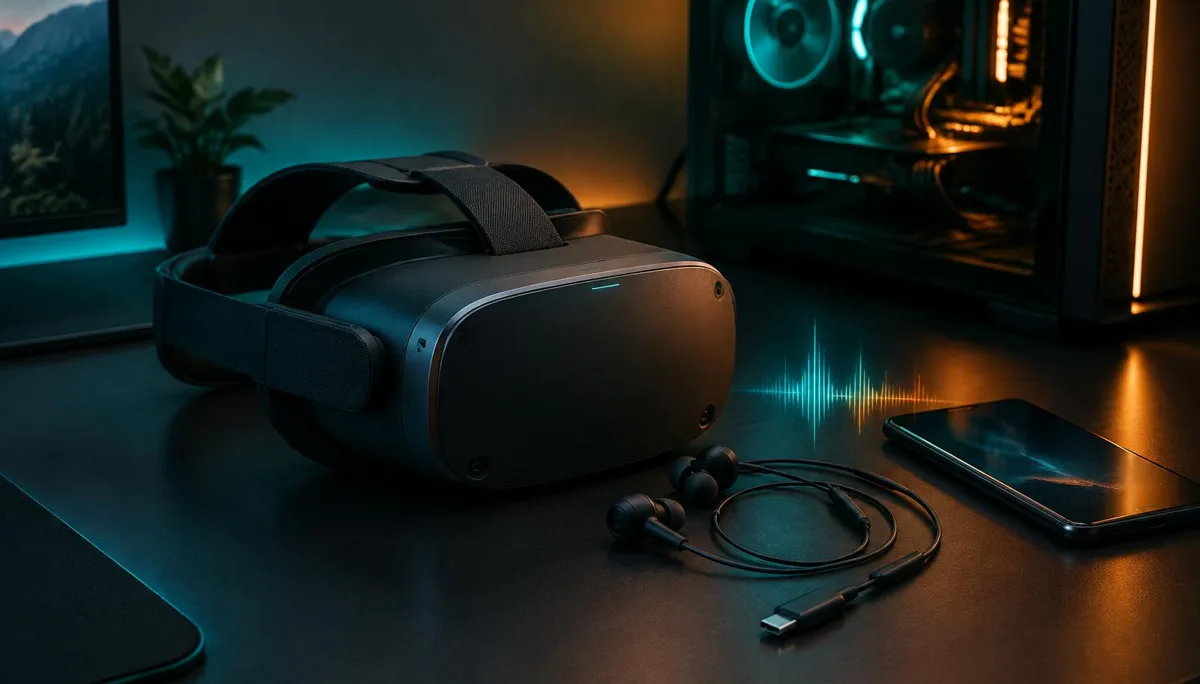
Most VRChat voice changer guides assume you play on a PC. Quest owners are left guessing, because the same headset can run VRChat in two very different ways. Pick the wrong method for your mode and you get the classic result: the effect sounds great to you, while everyone in the world hears your normal voice.
This guide splits the problem by mode. First you will identify where VRChat is actually running, then match a voice changing method to that path, then verify it from the listener's side.
Where VRChat takes your microphone on a Quest
VRChat only ever sends whatever its selected microphone gives it. The question is which device VRChat is running on. In standalone mode, the app runs inside the headset, so it listens to the headset's own microphone input. In PC VR mode, the headset is just a display and controller link, while VRChat runs on the computer and reads a Windows input device.
| Quest standalone | PC VR (Link / Air Link / Virtual Desktop) | |
|---|---|---|
| Where VRChat runs | On the headset | On the Windows PC |
| Microphone VRChat reads | Headset microphone input | The input selected in VRChat's PC settings |
| Where the voice can change | Before audio reaches the headset | In software on the PC |
| Typical method | External voice changing hardware | Desktop voice changer with a virtual microphone |
| Extra delay comes from | Voice processing plus the cable path | Voice processing plus streaming to the headset |
| Most common mistake | Testing only with your own monitor | Leaving VRChat on the headset or Oculus mic |
Not sure which mode you are in? If you launched VRChat from the Quest library without a cable or streaming app, you are standalone. If you opened it through Quest Link, Air Link, Virtual Desktop or SteamVR, you are in PC VR.
Standalone Quest: change the voice before the headset hears it
A standalone headset does not let you install a system-wide voice changer that rewrites the microphone feed. So the change has to happen outside the headset, and arrive as an ordinary microphone signal. That is the gap the Dubbing AI Voice Changing Earbuds are designed around, using the app's Console & VR Mode.
The Earbuds use wired USB-C audio and have no internal battery. Dubbing AI runs the voice model on the phone, sends the processed sound to the earbuds, and receives it back through USB-C microphone input. The app must remain running and the phone online throughout use. The app's device connection is separate from ordinary Bluetooth headset audio pairing.
General Console & VR Mode steps
- 1Plug the USB-C earbuds into your phone and open Dubbing AI with internet access.
- 2Select Console Mode (Console & VR Mode) on the earbuds page in the app.
- 3Complete the connection in the app before disconnecting the earbuds from the phone.
- 4Unplug the earbuds from the phone and connect them to the console using the supported connection for that platform.
- 5Keep Dubbing AI running and the phone online throughout voice changing. Check the console's active microphone input and ask a listener to confirm the outgoing voice.
We have not published a model-by-model Quest compatibility list. Treat these as general steps: after connecting, check that the headset is using the earbuds as its microphone and have a listener confirm the changed voice before a long session.
Two practical notes. The earbuds are wired, so plan for cable reach and avoid snagging the cord when you turn around in a room-scale space. And because the phone does the voice processing, keep it nearby, charged and online for the whole session. The full specs and what is in the box are on the Dubbing AI Voice Changing Earbuds page.
PC VR: run Dubbing AI software on the computer
Once VRChat runs on your PC, the headset no longer decides the microphone. Windows does. That makes PC VR the more flexible mode, because you can use the Dubbing AI desktop software to process your physical mic and expose the result as a virtual microphone.
- 1Install and open Dubbing AI on the Windows PC, and pick your real microphone (headset mic or desk mic) as its input.
- 2Choose a voice and confirm the meter moves when you speak.
- 3Start VRChat through Quest Link, Air Link, Virtual Desktop or SteamVR.
- 4In VRChat, open Settings, then Audio & Voice, and select the Dubbing AI virtual microphone as the microphone device.
- 5In Virtual Desktop or the Oculus app, avoid forcing the headset mic as the default input if it overrides your choice.
- 6Join a private instance with a friend and ask them to confirm they hear the effect, not your normal voice.
Streaming adds its own small delay on top of voice processing, especially over Wi-Fi with Air Link or Virtual Desktop. If speech starts feeling out of sync, our guide to why voice changers have audio delay breaks the chain into parts you can measure.
Troubleshooting: what each symptom usually means
| Symptom | Likely cause | First thing to check |
|---|---|---|
| Friends hear your normal voice (PC VR) | VRChat still uses the headset or default mic | VRChat microphone device setting |
| Friends hear nothing (PC VR) | Virtual mic muted or Windows mic access blocked | Windows privacy settings and the software output |
| Friends hear your normal voice (standalone) | Headset is not using the earbuds as input | Reconnect after completing Console & VR Mode in the app |
| Effect stops mid-session (standalone) | Phone app closed or lost internet | Keep Dubbing AI open and the phone online |
| Echo of your own voice | Monitoring through two outputs at once | Turn off one monitor or Hear Myself path |
When the PC side is the problem, the Windows routing checks in our article on why people can't hear your voice changer on Discord apply to VRChat almost line for line.
Choosing a setup in under a minute
- You play mostly standalone, without a gaming PC: go with external hardware such as the Dubbing Earbuds.
- You always play through Link, Air Link or Virtual Desktop: use the Dubbing AI desktop software on your PC.
- You switch between both: set up each mode separately, since the microphone path changes every time you switch.
- You want the lowest added delay in PC VR: prefer a cable Link connection over a busy Wi-Fi network.
The rule underneath all of this is simple. Find where VRChat is running, change the voice before that device reads it, and trust a listener's ears over your own monitor.
Voice changing for standalone sessions
Dubbing AI Voice Changing Earbuds: 500+ voices, about 300 ms processing, with Console & VR Mode in the app.
Get the Dubbing EarbudsFrequently asked questions
Dubbing AI Team
Hardware & Voice AI
We build real-time voice changing hardware for gaming, streaming and calls.