
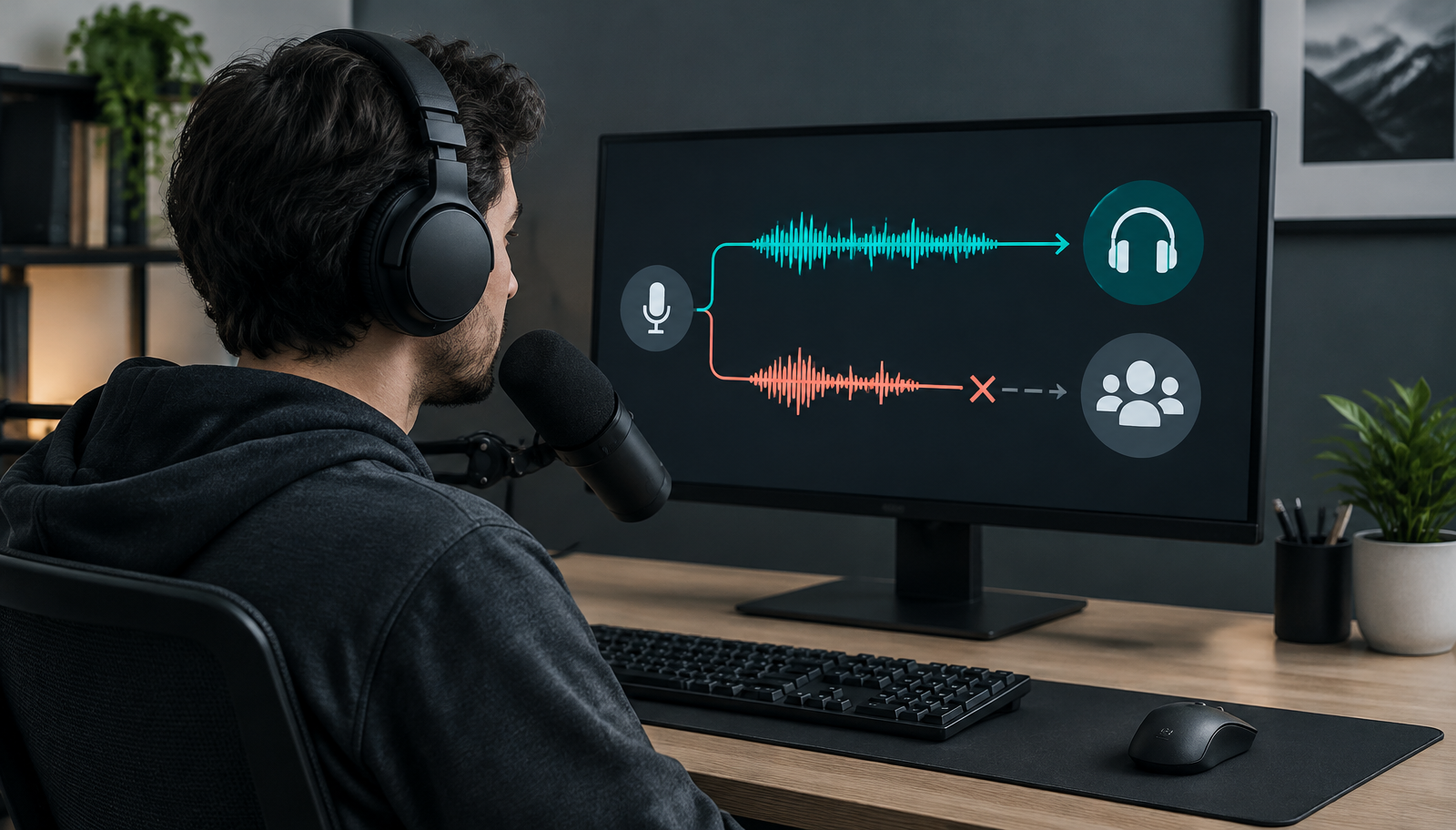
You turn on a voice, enable Hear Myself, and the transformed sound comes through your headphones. Then you join Discord and get one of two reactions: friends hear your normal microphone, or they hear nothing. The voice model is probably not the problem. Your headphones are playing a local monitor, while Discord is sending a different input path.
The fastest fix is to trace that path in order rather than changing every audio setting at once. On a PC, your physical microphone should feed the voice changer, the changer should feed a virtual microphone, and Discord should select that virtual microphone. If your symptom is broader—recordings work but every live app fails—start with our real-time voice routing diagnosis before returning to the Discord-specific checks below.
Why you hear the effect while everyone else cannot
Monitoring and transmission are separate copies of the same processed signal. Hear Myself sends one copy to your headphones so you can judge the voice. The virtual microphone sends another copy toward Discord. A working monitor confirms that your physical mic reaches the changer and that the effect runs, but Discord may still be listening to the laptop mic, a webcam mic, or a silent virtual device.
Your monitor answers, “Can I hear the effect?” The receiving side answers, “Is Discord transmitting it?” Only the second test proves the setup works.
This distinction also explains why the Discord input meter can move while friends still hear your natural voice. The meter shows activity on whichever device Discord selected; it does not identify whether that device carries processed audio. Read the device name, not just the moving bar.
Start with the three most likely causes
Most failures in this exact situation come from one of three places. Check them in this order because the first two take less than a minute and require no driver changes.
- Discord is using the physical microphone instead of the voice changer's virtual microphone.
- The voice changer is monitoring correctly but sending its processed output to the wrong virtual device or no device at all.
- Discord or Windows is blocking, muting, gating, or heavily processing the selected virtual microphone.
The first cause produces a clear but unchanged voice. The second usually produces silence. The third can appear as silence, clipped syllables, robotic audio, or a signal that vanishes whenever you speak softly. Matching the symptom to the stage keeps you from reinstalling software when Discord merely chose the wrong input after a restart.
Trace the signal from your microphone to Discord
Treat the setup as five handoffs. Test one handoff at a time, and stop at the first place where the expected signal disappears. Do not use your local monitor as proof for a later stage.
| Stage | Expected route | Proof that it works |
|---|---|---|
| Physical input | Microphone → voice changer | The changer's input meter moves when you speak |
| Processing | Raw voice → selected effect | Hear Myself plays the transformed voice |
| Virtual output | Changed voice → virtual microphone | Windows or the changer shows level on that virtual device |
| Discord input | Virtual microphone → Discord | Discord's input meter responds with that device selected |
| Network delivery | Discord → listener | A private-call listener hears the changed voice |
If stages one and two pass but stage three fails, work inside the voice changer or virtual-cable settings. If stage three passes and Discord remains silent, concentrate on Discord and Windows permissions. If every local stage passes but a listener hears dropouts, test Discord's input mode and processing rather than rebuilding the whole route.
Fix the input device inside Discord
Open User Settings, then Voice & Video. Under Input Device, choose the virtual microphone created by your voice changer or the receiving end of your virtual cable—not your headset mic, webcam mic, or Default unless you have deliberately made the virtual device the Windows default. Keep your headphones or speakers selected under Output Device. Discord's official voice troubleshooting guide also puts device selection among its first checks.
- 1Leave the current voice channel so the test does not confuse live and local audio.
- 2Keep the voice changer open, select its virtual microphone in Discord, and confirm the input meter moves.
- 3Run Discord's Mic Test to catch a completely silent route, but do not use it as the only proof of sound quality.
- 4Join a private call and ask the listener whether they hear the changed voice, the raw voice, silence, or clipped speech.
- 5Switch between Voice Activity and Push to Talk once; if Push to Talk works, revisit the activity threshold instead of the device route.
That final description matters. Raw voice means Discord still has the wrong input. Silence means the selected virtual device is not receiving or is blocked. Clipped speech means the route exists, so input sensitivity or processing is the more likely problem. One listening test can separate three different fixes.
Check Windows microphone access and device state
Windows can expose a virtual microphone while still preventing desktop apps from using microphone inputs. In Windows 11, open Settings, Privacy & security, then Microphone. Turn on Microphone access and Let desktop apps access your microphone. Microsoft documents both controls in its Windows microphone permission guide. Discord may not appear as an individual toggle because the desktop-app permission covers that class of programs.
Next, open System, Sound, and inspect Input devices. Speak while the voice changer runs and watch the virtual microphone's level. Confirm that it is enabled, not muted, and not set near zero. If you unplugged a USB headset, changed a dock, or updated an audio driver, Windows may have reassigned the default device while Discord kept an older selection. Reopen both applications after reconnecting the hardware so they rebuild their device lists.
Test noise suppression and Discord audio processing
A heavily transformed voice may not resemble the speech pattern a noise filter expects. Discord describes Krisp as on-device processing that removes sounds it classifies as non-human background noise. That is useful for a keyboard or fan, but a very low, synthetic, breathy, or soundboard-like signal can be clipped. This is a testable possibility, not a reason to disable protection permanently.
Temporarily turn off Noise Suppression, Echo Cancellation, Automatic Gain Control, and any separate headset enhancement, changing one control at a time. Make a short private call after each change. If one setting fixes the voice, turn the other protections back on and keep only the interfering control disabled. If nothing changes, restore the original settings; the fault is probably earlier in the route.
When the virtual microphone or cable stays silent
A silent virtual device usually means its two ends are reversed or the processing app stopped feeding it. In a typical chain, the real microphone is the changer's input, headphones are its monitor output, and the virtual device is its processed output. Discord then listens to that virtual device. Selecting headphones as the processed output only lets you hear yourself; it does not send the effect into Discord.
Keep the changer running while Discord is open. Then compare the sample rate shown for the virtual input and the app using it; mismatched or unavailable formats can produce distortion or silence on some setups. If the software offers an exclusive-mode control, disable it for one test so another app cannot reserve the device. The Voicemod Discord setup guide illustrates the general rule clearly: use the virtual device as Discord's input and your headphones as output. Follow your own tool's documentation for its exact device names.
Quick reference: symptom, cause and next step
Use the listener's report to choose a row. These symptoms point to different stages even when your local monitor sounds perfect.
| What the listener hears | Most likely cause | Next test |
|---|---|---|
| Your normal voice | Discord selected the physical mic | Choose the virtual microphone in Voice & Video |
| Complete silence | Virtual output is empty or blocked | Check its Windows level and the changer's output device |
| Only the first half of words | Voice Activity threshold or suppression | Try Push to Talk, then disable processing one item at a time |
| Robotic or slow audio | Device format or processing conflict | Match available formats and retest without enhancements |
| Works until a reconnect | Device identity or default changed | Reselect the input after reconnecting hardware |
| Soundboard works but voice does not | Different mixer channels or gates | Compare voice and soundboard channel levels inside the changer |
A changed but imperfect signal is progress: all five handoffs exist, so tune the final stages. Raw voice or silence means the route is still wrong. Return to the first failed proof instead of applying quality tweaks to audio Discord never receives.
What changes on Discord mobile
The desktop fix depends on a virtual microphone that Discord can select. Ordinary iPhone and Android apps generally cannot publish that kind of system-wide input for another mobile app, so the same menus and cable route do not transfer to a phone. Our Discord mobile voice changer guide covers that separate signal path and its practical options.
Do not keep searching for a hidden Discord mobile input menu. If you only need Discord on PC, software and a working virtual microphone remain the most direct answer. Hardware becomes relevant when you need a changed voice to arrive as the phone's connected microphone without routing through a computer.
When hardware is the simpler mobile route
Dubbing AI Voice Changing Earbuds process speech before it enters the phone, so mobile Discord receives an already changed microphone signal. As of October 2026, they support the iPhone 15, 16, 17 and 18 families—including Plus, Pro and Pro Max models—iPhone Duo, and Type-C Android phones that accept USB-C audio input. They provide about 300 ms real-time conversion and 500+ voices. The trade-off is a wired USB-C connection; for Discord on a PC, fixing a virtual microphone is usually simpler and costs nothing.
Verify the result from the listener's side
Finish with one controlled call. Use a single effect, keep Discord's selected input visible, and ask the listener to identify raw voice, changed voice, silence, or clipping. Then change only one setting before the next attempt. This method is slower than clicking random toggles for thirty seconds and much faster than losing an evening to an audio route that was never connected.
Once the listener hears the effect, save or screenshot the working input names. Audio updates and reconnects can change defaults, but the signal chain does not change: physical mic, processor, virtual mic, Discord, listener. When the problem returns, start at the first failed handoff.
Need real-time voice changing on mobile Discord?
Dubbing AI Earbuds send a changed voice to compatible USB-C phones as the connected microphone, without a PC virtual-audio route.
Buy Dubbing EarbudsFrequently asked questions
Dubbing AI Team
Hardware & Voice AI
We build real-time voice changing hardware for gaming, streaming and calls.