
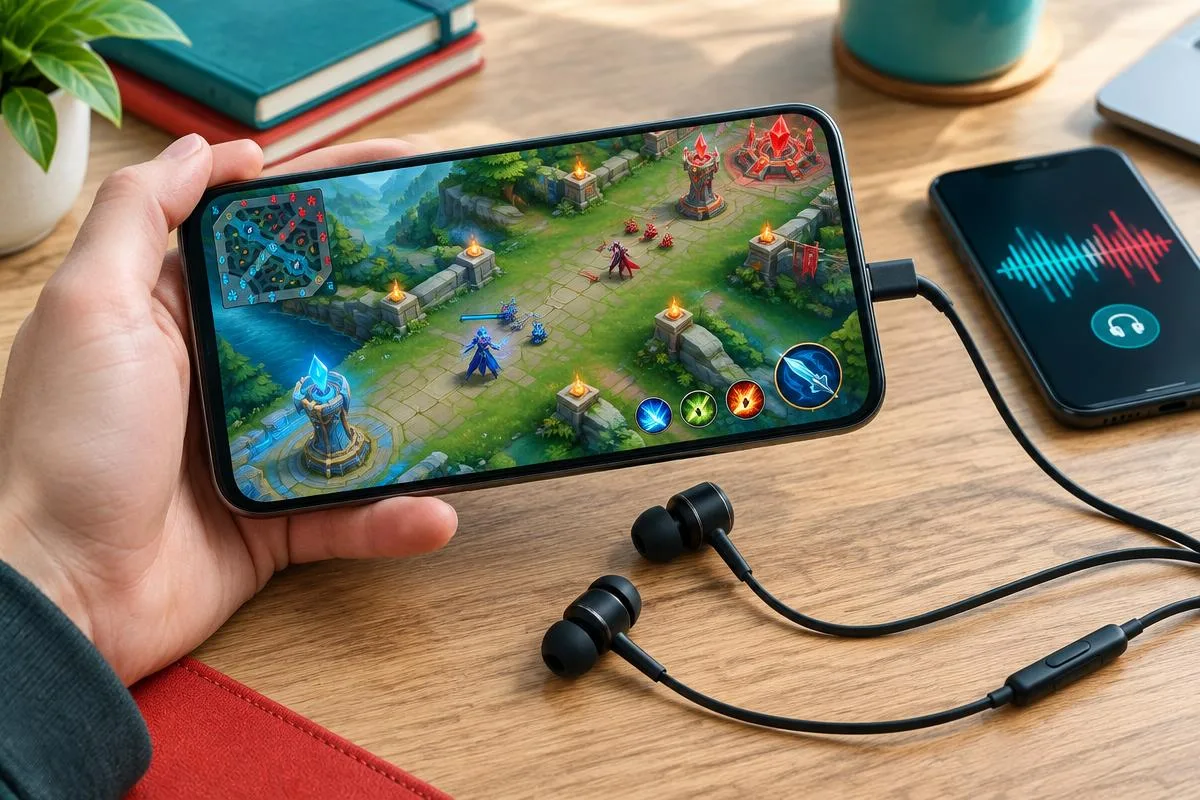
To change your voice in Mobile Legends: Bang Bang, the game must receive changed audio through its live microphone input. An app that edits a saved clip does not automatically change team chat. Start by confirming that normal voice chat works, then test a compatible voice-changing setup with a friend before joining a match where communication matters.
This tutorial focuses on that outgoing microphone path rather than changing a hero's voice lines or replacing game files. It offers a repeatable check, not a universal compatibility guarantee. If the distinction between recordings and live input is unfamiliar, our guide to voice changers that only work in recordings explains why an impressive preview can still leave teammates hearing your normal voice.
What you need before changing your MLBB voice
Choose a method for the conversation you actually use. MLBB team chat, a separate Discord call and a recorded highlight are different destinations. Success in one does not prove success in another. For this guide, the destination is the game's own live chat, and the final judge is a listener in the same intended channel.
Prepare the phone and a willing listener
You need the current game from an official store, permission to use the microphone and a connection that supports normal voice chat. For a wired accessory, also check the phone's USB-C microphone-input support. A charging port alone is not enough evidence. Have a friend ready to listen during a relaxed lobby or session where voice chat is available.
Use this checklist to separate the essentials from optional extras. It prevents changing several audio settings at once and losing track of which step made a difference.
- Confirm the exact phone, operating system and installed MLBB version.
- Check microphone permission and ordinary outgoing voice before enabling effects.
- Verify the accessory's live audio requirements, not just its recording preview.
- Arrange a listener in the same available voice channel.
If normal voice already fails, stop here and solve that first. A new effect cannot repair a muted channel or denied permission. Keep a note of the working baseline so you can return to it after each test. Avoid starting with a reinstall, an unofficial client or an adapter whose microphone support you have not checked.
Confirm ordinary Mobile Legends voice chat first
Open MLBB and find the voice controls offered by your installed version. Check outgoing microphone and incoming speaker controls separately, then confirm that you and your friend use the same intended channel. Labels and locations can change. Do not assume that a speaker icon being enabled also means your microphone is transmitting.
Check the phone's microphone permission
On Android, Google's app permission instructions, checked in November 2026, describe Settings, Apps, the selected app and Permissions. Allow the microphone for MLBB when you intend to use voice chat. Also check the device-wide microphone access control where available. Menu wording depends on the phone manufacturer and Android version.
On iPhone, Apple's hardware access guide, checked in November 2026, describes microphone access under Privacy & Security. Check MLBB's permission there. If an app has not requested access, trigger its normal voice feature and follow the permission prompt rather than assuming that a missing entry proves the phone is incompatible.
A microphone indicator is a clue. Your teammate correctly hearing the test phrase is the result you need.
Say a short ordinary phrase and ask the listener to repeat it. Then ask them to speak back so you can check incoming audio independently. Third-party MLBB voice troubleshooting guidance also points to permissions, channels and audio routing; use it as supporting guidance, not an official guarantee about every edition's menus. Missing controls should be investigated through current in-game support.
Connect a live voice-changing setup on your phone
Dubbing Earbuds are one hardware route to evaluate for a compatible USB-C phone. The Dubbing Earbuds specifications list 500+ voices and approximately 300 ms latency as of November 2026. Phone performance affects the experience, so some delay should be expected. This is an entertainment option, not a promise of zero-delay tactical communication or verified compatibility with every MLBB build.
The Earbuds use wired USB-C audio and have no internal battery. Dubbing AI runs the voice model on the phone, sends the processed sound to the earbuds, and receives it back through USB-C microphone input. The app must remain running and the phone online throughout use. The app's device connection is separate from ordinary Bluetooth headset audio pairing.
Configure the effect before entering team chat
Follow the current app's device-connection instructions after plugging the earbuds into the phone. Use the mobile setup for this mobile game rather than a console connection sequence. Keep Dubbing AI running and the phone online when switching back to MLBB. Closing the required app is not a valid way to remove unrelated audio conflicts in this particular setup.
Work through the connection in order, preserving the ordinary voice baseline. If the app cannot complete its connection or the phone does not recognize microphone input, investigate that boundary before opening a match.
- 1Plug the wired USB-C earbuds into the compatible phone and open Dubbing AI with internet access.
- 2Complete the current mobile device connection in the app and choose a clearly distinguishable voice effect.
- 3Check the app preview as an initial processing check, without treating it as proof of game input.
- 4Return to MLBB while keeping Dubbing AI running online, then reopen the intended voice session.
- 5Ask the listener to confirm the outgoing effect and compare it with your ordinary voice.
That order isolates connection, processing and game capture. If the preview changes but MLBB does not, avoid cycling through more presets: the destination microphone path is the next question. If no processing occurs even in the app, investigate the app connection and network first. Keep the game test separate from any recording or screen-capture experiment.
Check what teammates hear before playing seriously
A useful listener test compares ordinary speech and one obvious effect in the same conversation. For example, say 'I am checking the microphone before we play' normally, then repeat it with a robot-style voice. Ask whether the effect is present, whether words are understandable and whether the delay feels distracting. Do not ask only whether your voice sounds good.
Separate an effect test from a performance test
First establish that the game receives processed speech. Only then evaluate how the setup feels while the phone is also running a match. Changes in load, network quality or audio focus can affect the experience. A brief preview while the game is closed does not establish comfort during sustained play. If clear calls suffer, use ordinary speech rather than forcing an effect.
Use the same phrase, listener and channel for each comparison; change only one part of the setup at a time.
Incoming game audio deserves its own check. You may successfully transmit an effect while the phone chooses an unexpected listening output. Our guide to game audio disappearing when voice chat opens covers that separate symptom. An outgoing microphone success should not be used to dismiss a listening problem, especially when teammates need you to hear their calls.
Troubleshoot the boundary where audio stops working
Use the evidence from your baseline and listener test to narrow the problem. This table organizes observations by the boundary they suggest. It is not a diagnosis for every phone, nor a reason to buy more gear without checking the settings already available.
| Observation | Check next | Safe fallback |
|---|---|---|
| Ordinary voice is silent | Game microphone control, permission and intended channel | Restore normal phone voice chat first |
| Preview changes; teammate hears normal speech | Game capture path and session opened after connection | Reopen voice chat and retest one effect |
| Effect stops after switching apps | Required app still running, phone online and audio focus | Stop the session and re-establish the mobile setup |
| Words are delayed or difficult to follow | Phone load, connection stability and effect choice | Use ordinary voice for important calls |
| Others hear you; you cannot hear them | Speaker control, listening volume and output route | Test incoming audio separately |
If the same problem remains, record the phone model, operating-system version, game version and which baseline checks succeeded. Share those observations with the relevant support team without including account passwords or private conversation recordings. Avoid repeated resets that erase the evidence. Do not install modified game files or tools claiming to unlock hidden microphone privileges.
Choose voices that keep squad conversations understandable
A playful voice fits a relaxed group that knows you are using an effect. Try a fictional robot greeting, a light character-style introduction or a different narrator tone between games. Ask the squad what they enjoy. When the team needs short information during a difficult fight, clarity matters more than staying in character, and ordinary speech may be the better option.
Respect the group and the game's rules
Do not impersonate a real person, conceal harassment behind an effect or assume that external voice gear is approved for every event. Follow current game rules and any tournament requirements. Ask before recording or sharing teammates' voices. A joke should remain optional for everyone listening, including a new participant who joins after the group has already agreed.
Check your phone before choosing voice gear
Review Dubbing Earbuds' wired USB-C audio, app and internet requirements before evaluating them for your MLBB setup.
View Dubbing EarbudsThe reliable way to change your Mobile Legends voice is to prove each step: ordinary chat, phone connection, live processing and the teammate's received audio. Keep the working baseline and return to it when necessary. An effect that your friends can understand is worth more than a dramatic preview that never reaches their channel.
Frequently asked questions
Dubbing AI Team
Hardware & Voice AI
We build voice-changing hardware for gaming and calls. This guide combines current Earbuds requirements with phone permission documentation; it is not a claim of MOONTON certification or a hands-on test of every MLBB version.