
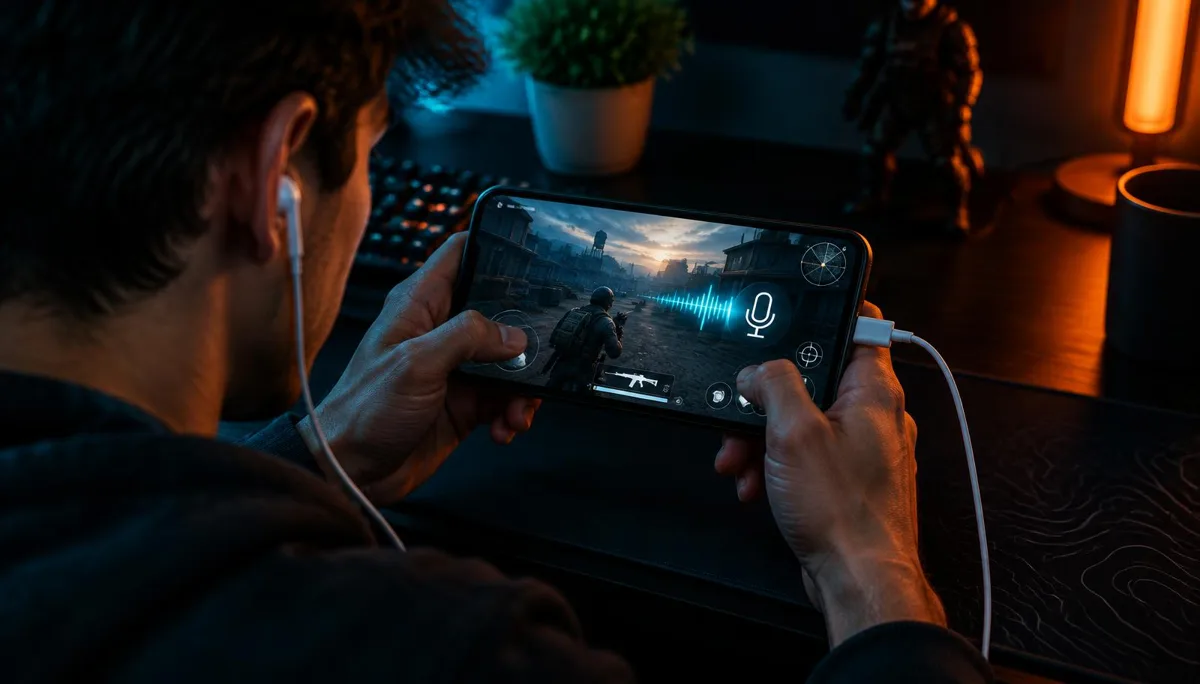
You load into a match, the music and footsteps sound fine, then you tap the mic button and the game goes nearly silent. Or the sound turns thin and tinny, like it is coming through an old phone. It feels like a bug, but it is usually your device doing exactly what it was designed to do.
Phones, headsets and PCs treat a live conversation differently from playing media. Once voice chat starts, they prioritise your voice and the other person's voice, and game audio becomes the lowest-priority sound. This guide explains where that switch happens and how to undo it on each platform.
Why game audio cuts out the moment voice chat starts
Operating systems keep separate audio modes for media and for communication. Media mode favours stereo, wide-range sound for music, video and games. Communication mode favours a clear voice, echo cancellation and low delay, and it often narrows or lowers everything else.
When a game or chat app opens the microphone, it usually asks the system for communication mode. The system then applies its own rules: lower the game, route audio to a different output, or switch the headset into a call profile. Three things decide how badly your game audio suffers:
- The connection type — Bluetooth headsets change profile; wired headsets usually do not.
- The system's ducking rules — Windows, iOS and Android can lower other audio during calls.
- The app's own settings — Discord, in-game voice and party chat can each attenuate game sound.
Bluetooth headsets and the media vs. call profile switch
Classic Bluetooth audio uses one profile for high-quality listening and another for two-way calls. The listening profile has no microphone channel. So the moment any app needs your headset mic, the connection drops to the call profile, which carries narrow, compressed audio in both directions.
That is why game sound can go muffled, quiet or mono as soon as you unmute. On some phones the game keeps playing through the media channel that is no longer active, so it seems to vanish entirely. Newer Bluetooth LE Audio devices reduce this trade-off, but support depends on both the phone and the headset.
Quick Bluetooth fixes
- 1Use the phone's built-in mic for chat and keep the headset for listening only, if your app lets you pick the input.
- 2Switch to a wired headset or USB-C earbuds, which do not change profile when the mic opens.
- 3Turn off and reconnect Bluetooth after a call; some headsets stay stuck in call mode until reconnected.
We cover the full trade-off, including delay, in our Bluetooth vs wired voice changer comparison.
iPhone and Android: call volume vs. media volume
Phones keep a separate volume slider for calls and for media. When a game enters voice chat, the volume buttons often start controlling call volume instead, while game audio stays at whatever level media was set to. If media was low, the game sounds like it disappeared.
- Check both sliders. On Android, press a volume button and expand the panel to see media and call volume separately. On iPhone, raise the volume while voice chat is active and again while it is muted.
- Look for the game's voice settings. Many mobile shooters have separate sliders for game effects, music and voice, plus a speaker or earpiece option.
- Restart the game after changing devices. Games often lock their audio route when the match loads.
Some games also choose a voice-processing mode that applies echo cancellation to the whole output. That can make effects sound flat even when the volume is fine. Lowering in-game voice quality or turning off a 'clear voice' option sometimes restores fuller game sound.
Windows ducking and Discord attenuation on PC
Windows has a built-in rule that lowers other sounds when it detects communication activity. Discord adds its own attenuation that dims other apps when someone speaks. Together they can make game audio drop by most of its volume every time a teammate talks.
Turn off Windows communication ducking
- 1Open the classic Sound control panel (search 'Change system sounds' and select the Communications tab).
- 2Choose 'Do nothing' under 'When Windows detects communications activity'.
- 3Click Apply and restart the game and chat app.
Turn off Discord attenuation
In Discord, open Voice & Video settings and find the Attenuation slider. Drag it to 0% and turn off attenuation when you speak and when others speak. Also confirm Discord's output device matches the game's output, otherwise the two may play through different devices.
If teammates cannot hear you at all after these changes, that is a separate input problem. Our guide on why people can't hear your voice changer on Discord walks through that side.
When a voice changer is part of the audio chain
Adding a voice changer adds one more app that wants the microphone. If the game, the chat app and the voice changer all request communication mode, the system may apply its call rules more aggressively, and game audio can drop further.
With Dubbing AI Earbuds, the audio path is wired. The Earbuds use wired USB-C audio and have no internal battery. Dubbing AI runs the voice model on the phone, sends the processed sound to the earbuds, and receives it back through USB-C microphone input. The app must remain running and the phone online throughout use. The app's device connection is separate from ordinary Bluetooth headset audio pairing. Because there is no Bluetooth headset profile switch, the most common cause of vanishing game audio is removed. Games and chat apps can still apply their own call-mode volume, so check the sliders described above.
Rule of thumb: if game audio vanishes only when the mic opens, look at call mode first. If it vanishes randomly, look at the cable, the app and the connection.
Symptom, cause and fix at a glance
| What you notice | Likely cause | What to try |
|---|---|---|
| Game sound turns tinny or mono when you unmute | Bluetooth headset switched to call profile | Use a wired headset or a separate mic |
| Game sound goes silent, chat still works | Call volume active, media volume low | Raise media volume; check in-game sliders |
| Game dips every time a teammate talks | Discord or Windows ducking | Set attenuation to 0%; Windows 'Do nothing' |
| Game and chat play on different devices | Mismatched output devices | Match output in game, chat app and system |
| Game audio flat even at full volume | Echo cancellation applied to output | Lower voice quality or disable clear-voice mode |
| Audio lost after reconnecting a device | Game locked the old audio route | Restart the game after connecting audio |
A 60-second checklist before your next match
- 1Connect your headset or earbuds before launching the game.
- 2Open voice chat once and confirm game sound stays at a normal level.
- 3Check media and call volume separately on your phone.
- 4On PC, set Discord attenuation to 0% and Windows communications to 'Do nothing'.
- 5Ask a teammate to confirm they hear you clearly before the match starts.
Most of the time, vanishing game audio is a setting, not a broken device. Fix the call-mode behaviour once and your matches should sound the same with the mic on or off.
Keep game audio and voice on one wired connection
Dubbing AI Earbuds use wired USB-C audio, so opening the mic does not trigger a Bluetooth call profile switch.
See Dubbing AI EarbudsFrequently asked questions
Dubbing AI Team
Hardware & Voice AI
We build real-time voice changing hardware for gaming, streaming and calls.