
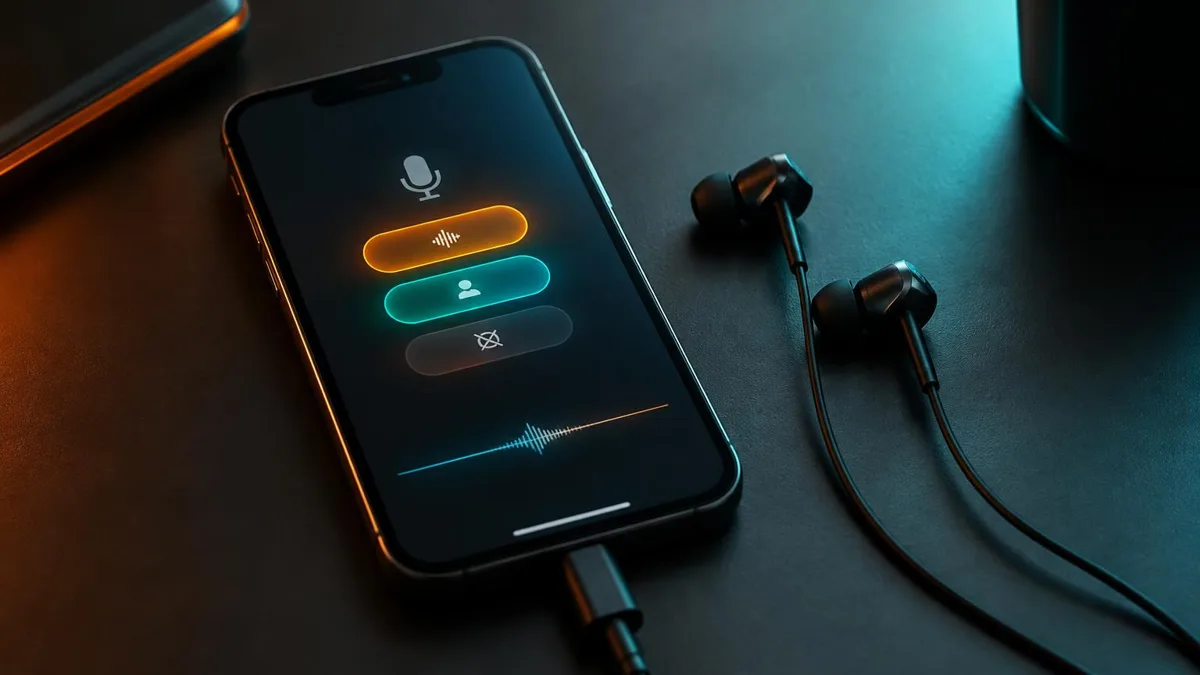
Your voice changer sounds great in a test recording. Then you join a FaceTime call, and your friend says the robot voice keeps dropping out, or the demon voice sounds thin and far away. Before you blame the voice changer, check one small iPhone setting: Voice Isolation.
This guide explains what Voice Isolation does, why it can fight a changed voice, how to spot it, and how to turn it off in the apps people use most. It applies to iPhones running recent iOS versions, as of October 2026.
What Voice Isolation does on an iPhone
Voice Isolation is one of the Mic Modes Apple offers in Control Center. While an app is using the microphone, you can open Control Center, tap Mic Mode and choose between Standard, Voice Isolation and, on supported models, Wide Spectrum.
Voice Isolation uses on-device processing to keep your speech and remove everything else: keyboards, traffic, fans, music. It is excellent for ordinary calls in a noisy café. The catch is that it decides what counts as speech based on how a normal human voice sounds.
The setting is remembered per app. If you turned it on for FaceTime last week, it may still be active today. Not every app shows the Mic Mode option, and the choices offered can vary by app and iOS version.
How Mic Mode interacts with a changed voice
A voice changer deliberately makes your voice sound less like a typical human voice. Pitch shifts far down, metallic textures, growls and echoes are exactly the kind of sounds a speech filter may treat as background noise. The more extreme the effect, the more likely it gets trimmed.
| Mic Mode | What it keeps | Effect on a changed voice | Use it when |
|---|---|---|---|
| Standard | Your microphone signal with normal processing | Effect passes through mostly intact | Default choice for voice changing |
| Voice Isolation | Sound that resembles natural speech | Extreme effects can be muffled, gated or partly removed | Ordinary calls in loud places, no effect active |
| Wide Spectrum | Your voice plus surrounding sound | Effect passes, but room noise and echo come with it | Quiet rooms where you want ambience |
Mild effects, like a slightly higher or lower pitch, often survive Voice Isolation because they still sound like speech. The trouble usually starts with characters and creatures. Whispers and breathy voices can also be removed because they lack the strong tones the filter looks for.
Does it matter where the voice is changed?
Yes. Mic Mode applies to the audio an app receives from the microphone input. If a changed voice arrives through that input, whether from a USB-C device or another route, the call app may still apply Voice Isolation on top. That is why the setting can affect both app-based and hardware-based setups.
Symptoms that point to Voice Isolation
Voice Isolation problems have a recognizable pattern. They appear in one app but not another, and they get worse with more dramatic voices. Use this table to compare what you hear with the likely cause.
| What listeners hear | Likely cause | Quick check |
|---|---|---|
| Deep or monster voice sounds thin and quiet | Voice Isolation trimming low, rough tones | Switch Mic Mode to Standard and repeat a phrase |
| Words cut off at the start or end | Speech gate closing on unusual sounds | Try a milder voice; if gaps vanish, it is the filter |
| Whisper or breathy voice disappears | Filter treating breath as noise | Test in Standard mode |
| Robot voice sounds choppy everywhere | Network or processing load, not Mic Mode | Turn the effect off and compare |
| Your normal voice comes through, no effect | Wrong microphone input selected | Check which input the app uses |
How to switch your iPhone to Standard mode
- 1Start the call, stream or voice chat first, so the app is actively using the microphone.
- 2Swipe down from the top-right corner to open Control Center.
- 3Tap the Mic Mode tile at the top, which appears only while an app is using the mic.
- 4Choose Standard, then close Control Center.
- 5Say a test phrase with your changed voice and ask a listener whether it sounds complete.
Change Mic Mode during the session, not before. iOS remembers the choice per app, so you only need to do it once for each app you use.
App-by-app notes
- FaceTime: Mic Mode is usually available and commonly left on Voice Isolation, so check it first.
- WhatsApp calls: open Control Center during the call; the setting is saved for WhatsApp separately from FaceTime.
- Discord: also check Discord's own noise suppression and echo cancellation in Voice settings, which can filter effects too.
- TikTok Live: set Mic Mode once the live preview is running, then do a short test before going public.
Remember that call apps can run their own noise reduction too. If Standard mode helps only partly, turn down the in-app suppression as well, then test again.
Using Dubbing Earbuds with Voice Isolation off
Dubbing AI Earbuds work with iPhone 15, iPhone 16, iPhone 17 and iPhone 18 series models, including Plus, Pro and Pro Max, plus iPhone Duo, as of October 2026. They connect through USB-C and deliver 500+ voices with about 300 ms processing delay, which can vary with phone performance.
The Earbuds use wired USB-C audio and have no internal battery. Dubbing AI runs the voice model on the phone, sends the processed sound to the earbuds, and receives it back through USB-C microphone input. The app must remain running and the phone online throughout use. The app's device connection is separate from ordinary Bluetooth headset audio pairing.
Because the changed voice reaches the call app through the USB-C microphone input, set that app's Mic Mode to Standard once. The Dubbing Earbuds product page covers the full setup and supported phones.
Keep your changed voice intact on iPhone
Dubbing Earbuds use wired USB-C audio with 500+ voices and about 300 ms processing delay. Keep Dubbing AI running and online during use.
Buy Dubbing EarbudsWhen the problem is not Voice Isolation
If Standard mode changes nothing, look elsewhere. Three causes cover most remaining cases.
- Network: an unstable connection causes choppy or robotic audio regardless of Mic Mode. Our guide to why a voice changer sounds robotic or cuts out walks through the checks.
- Wrong input: a paired Bluetooth headset can grab the microphone and bypass your voice changer entirely. Disconnect it and retest.
- Delay: if the voice is complete but late, that is latency, not filtering. See what causes voice changer audio delay.
Once you know Voice Isolation is the culprit, the fix is quick and lasting. Set Standard mode for each app you voice change in, keep extreme effects for apps where you have tested them, and do a short listener check before important calls.
Frequently asked questions
Dubbing AI Team
Hardware & Voice AI
We build real-time voice changing hardware for gaming, streaming and calls.